Russ' Do It Yourself Home Workshop

Finding Fixes to Just About Anything and Everything

Replacing a Passenger Side Mirror on a 2018 Honda Clarity PHEV

Posted by Russell Wright on August 1, 2024

This is a real quick on just to show what’s important to remember when you remove the passenger side door panel, which is necessary, to replace the passenger side mirror.

Begin by carefully prying up on the switch assembly that is held in place by clips.  Suggest using a plastic pry tool.  Some start the removal with a 90 degree pick tool.

Honda Clarity Passenger Side Mirror Replacement (2)

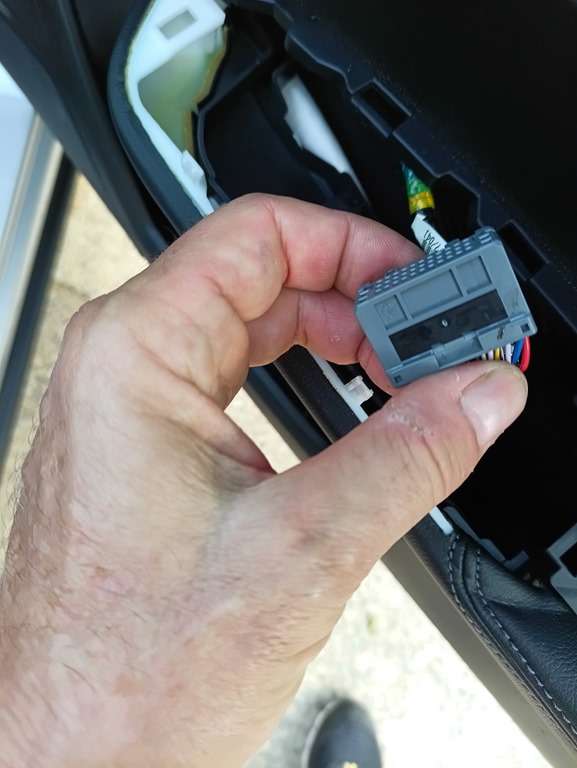
Remove the connector from the switch assembly.  This involves pressing the clip and pulling.  It should come apart fairly easily.

Honda Clarity Passenger Side Mirror Replacement(3)

Now you can gently pry around the edge to pop loose the trim retainers to remove the door panel.  Suggest using both hands and plastic pry tool near each retainer.  There are some videos on the web that show how to do this.  Pretty standard Honda stuff.

This is the one screw that needs to be removed.  Similar to other Hondas, such as the Accord.

Honda Clarity Passenger Side Mirror Replacement(4)

You have to remove a black rubber plug and pull back the plastic door liner that is held in place with black goop.  Warning!  It is really goopy!.

There are 3, 10mm nuts that have to be removed.  Suggest either magnetic socket accessory or use some sticky stuff that is used to hold things on walls with your socket to capture the nut and make sure it doesn’t fall into the door cavity.

Honda Clarity Passenger Side Mirror Replacement (5)

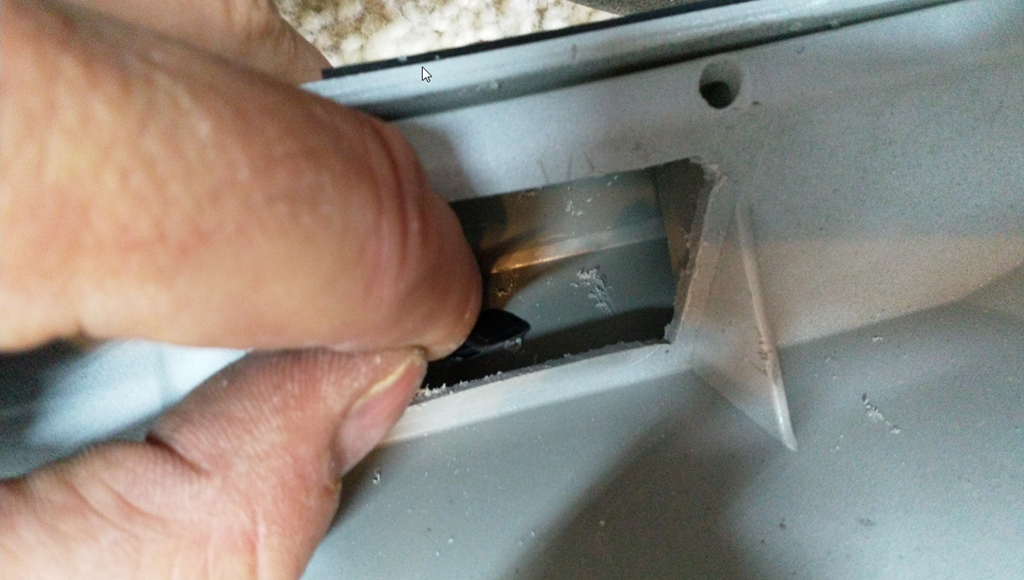
There is a connector clip that needs to be released that holds the cable inside the door.  The big connector fits through the hole without issue.

Honda Clarity Passenger Side Mirror Replacement (1)

Posted in Auto Repair | Leave a Comment »

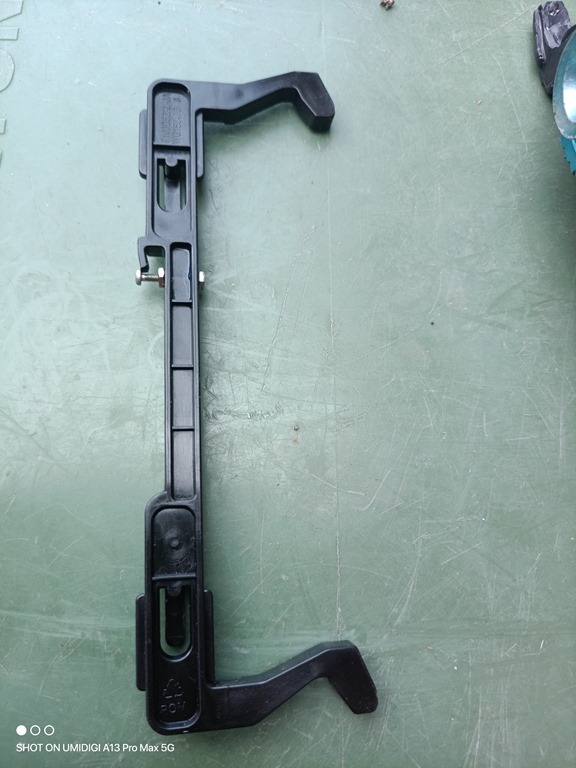
Microwave Door Latch Frigidaire FFMV1845VSA Part # 5304522796

Posted by Russell Wright on June 24, 2024

Can anyone find this microwave door latch? : r/Appliances (reddit.com)

Number from the part: P100D56AL-JA WG150746 3

This is a very quick post on the repair.

IMG_20240531_171911_201

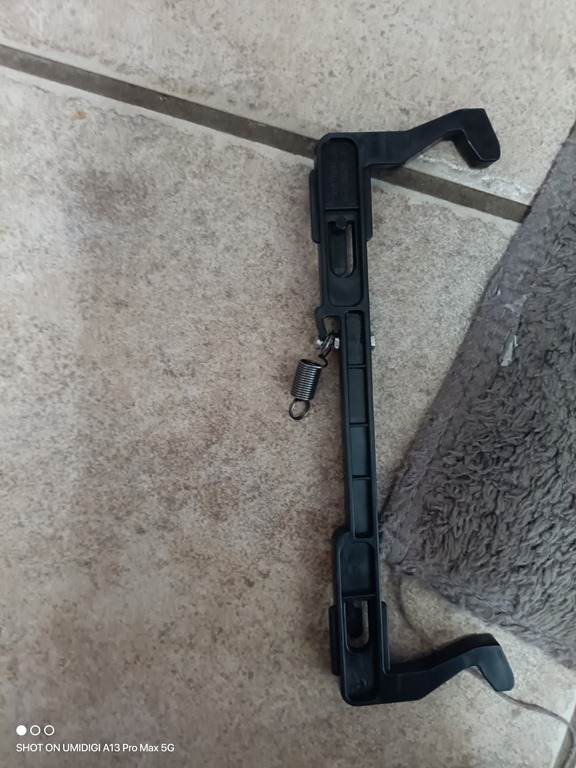
Broken plastic hook for spring.

Used a #2 screw and two nuts.  Carefully drilled a hole in the middle of the latch that allowed me to screw in the #2 machine screw (tight fit) with a locking nut in place.  I ended up with a screw placement that made the spring captive and made it necessary to take it apart to loop the spring on the newly implemented hook. 

Works perfectly!

IMG_20240609_115106_685

IMG_20240609_115116_465

IMG_20240609_124839_399

IMG_20240609_125008_207

Posted in Appliance Repair | Tagged: , , , | Leave a Comment »

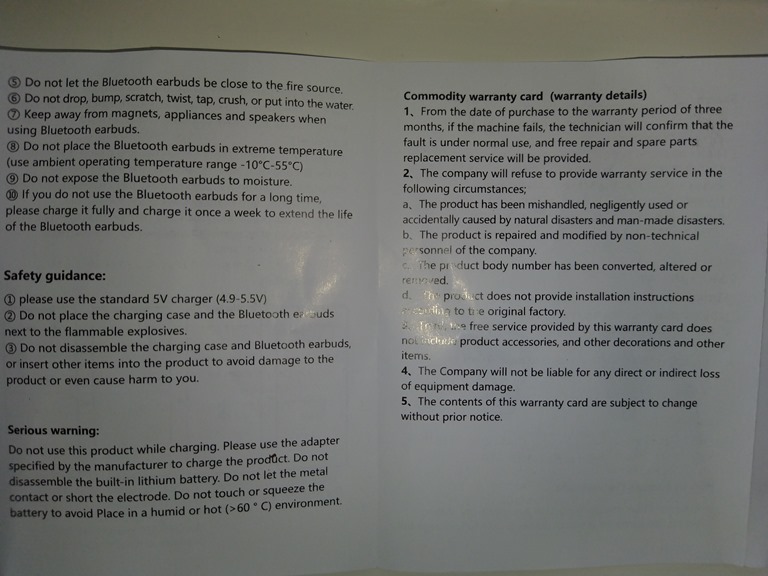
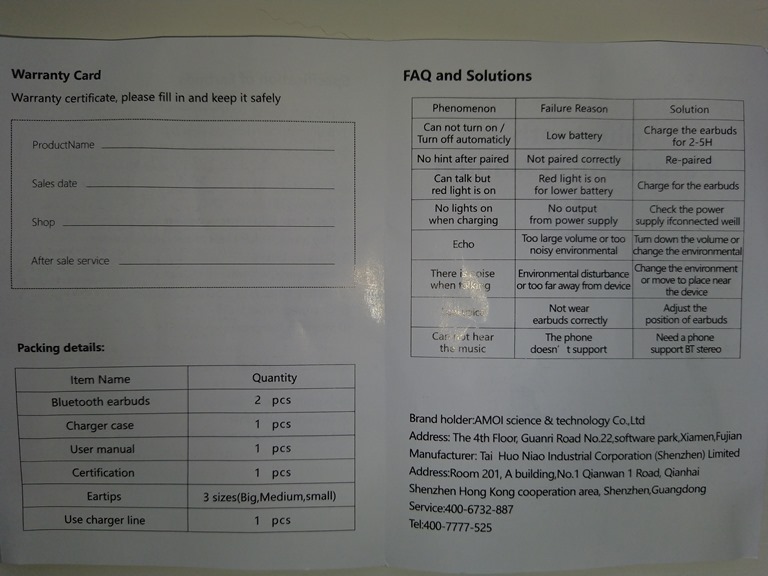
AMOI F9 Bluetooth Earbuds Waterproof Instructions

Posted by Russell Wright on June 22, 2020

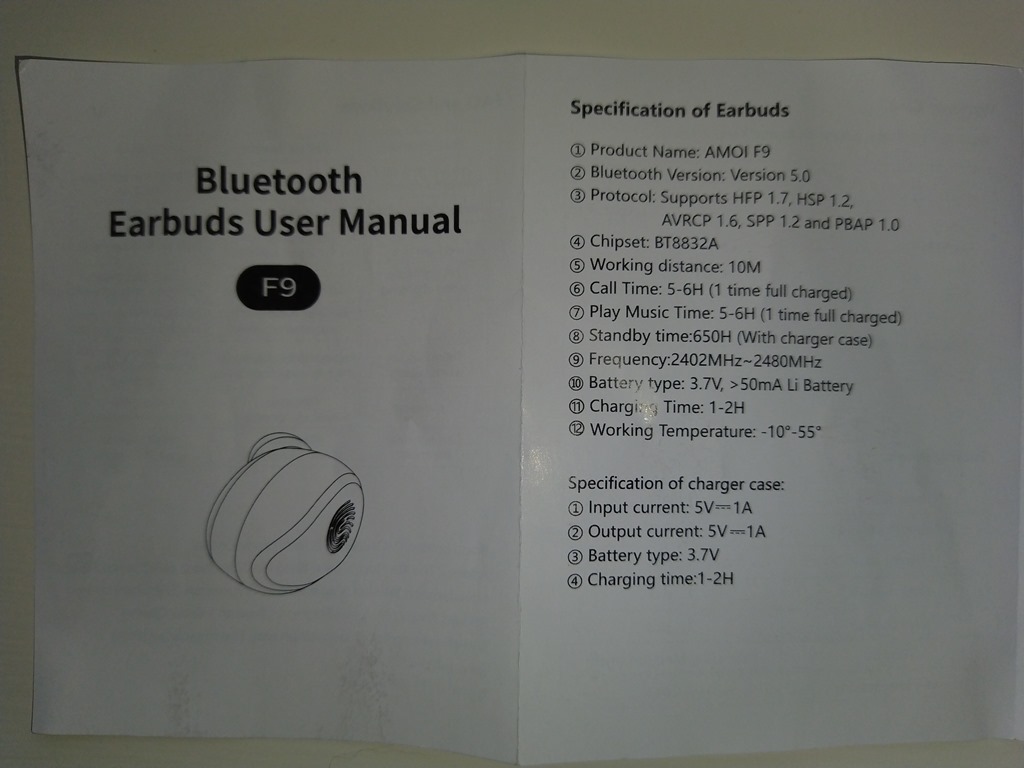
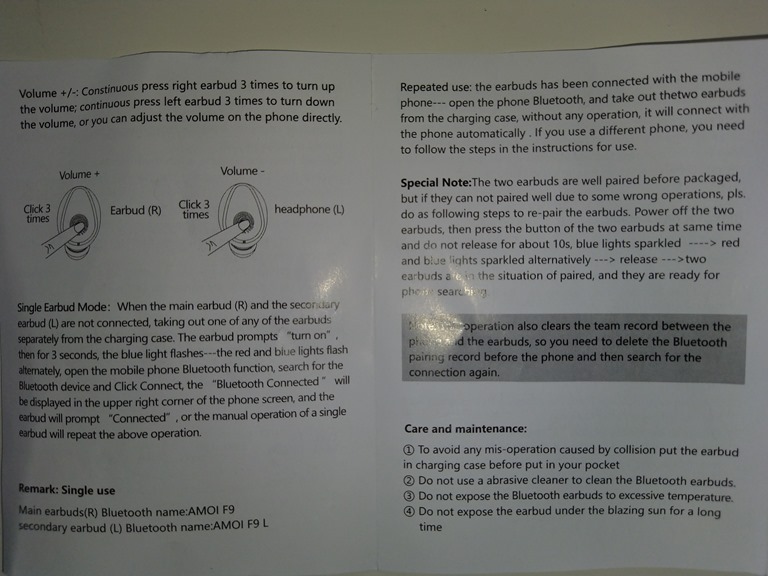
I’ve been purchasing several different waterproof earbuds to test them out in various cconditions.  Here are the latest instructions for the F9 earbuds made by AMOI Science and Technology. 2020-06-22

IMG_20200622_083204

IMG_20200622_083228

IMG_20200622_083239

IMG_20200622_083251

IMG_20200622_083258

IMG_20200622_083313

Posted in Uncategorized | Leave a Comment »

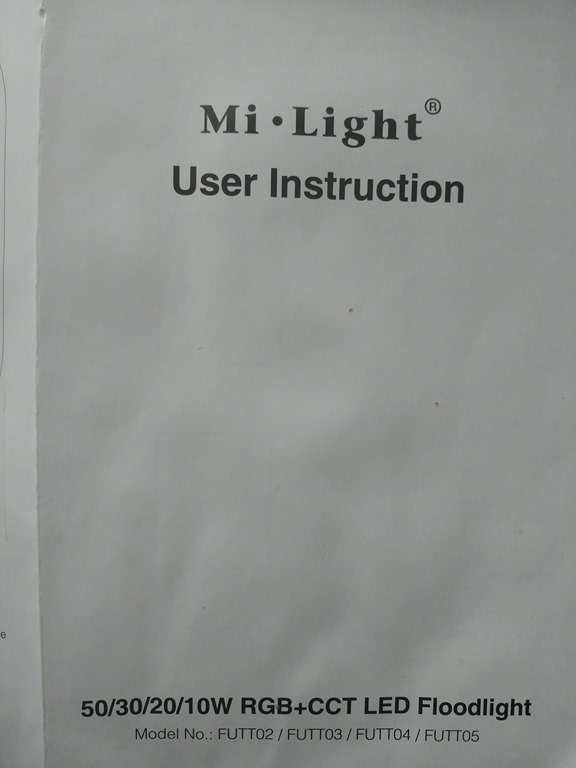
Mi Light User Instructions–Wiring and Remote Programming

Posted by Russell Wright on April 15, 2020

These are great lights that I have lighting up my landscape.  I’ve posted the instructions here so I don’t lose them, since I don’t program these lights very often.  They were purchased from Cabbi who works at futlight.com.  (milight24@futlight.com)

IMG_20200413_130141

IMG_20200413_130130

IMG_20200413_130115

IMG_20200413_130108

IMG_20200413_130045

IMG_20200413_130054

Keywords:

FUTT02

FUTT03

FUTT04

FUTT05

Milight

Posted in Instructions | Leave a Comment »

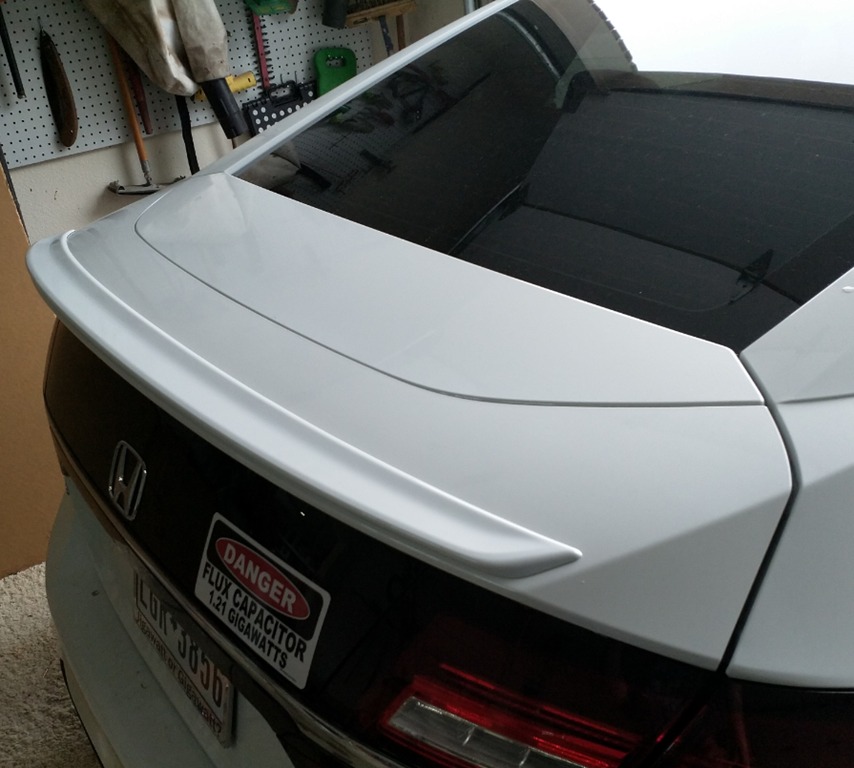
Honda Clarity Decklid Spoiler Installation 08F10-TRT-100

Posted by Russell Wright on March 22, 2020

So our task today is to install this decklid spoiler on a Honda Clarity PHEV.  The installation instructions were acquired from College Hills Honda.  I recommend you use the official instructions along with this pictorial guide, as a picture is worth a thousand words!

image

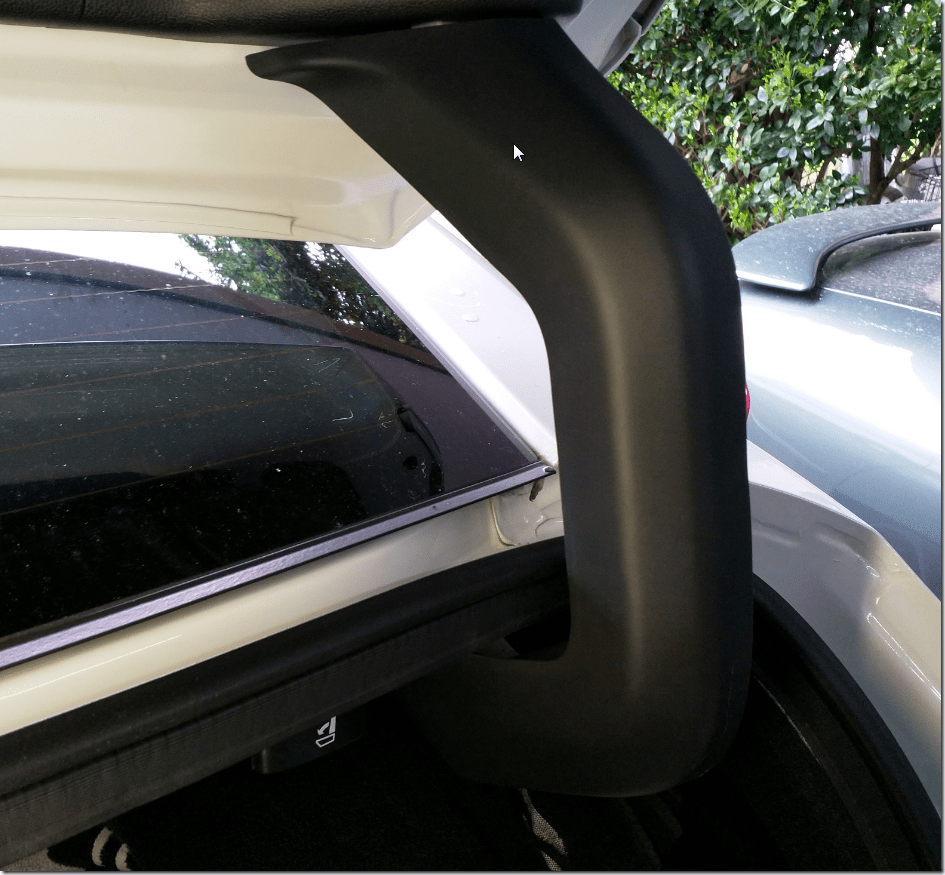
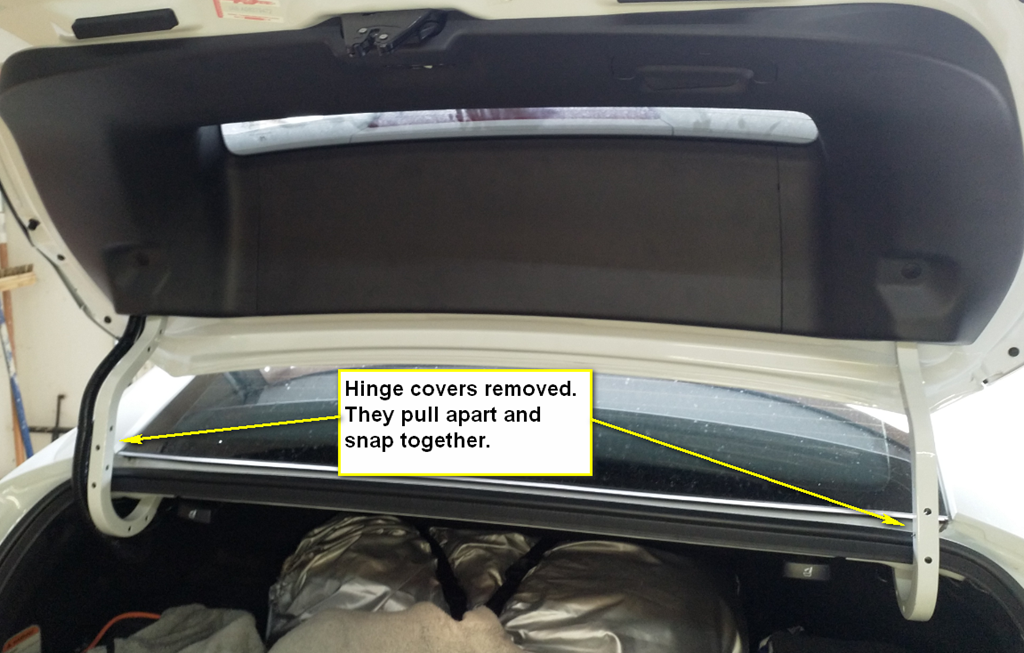
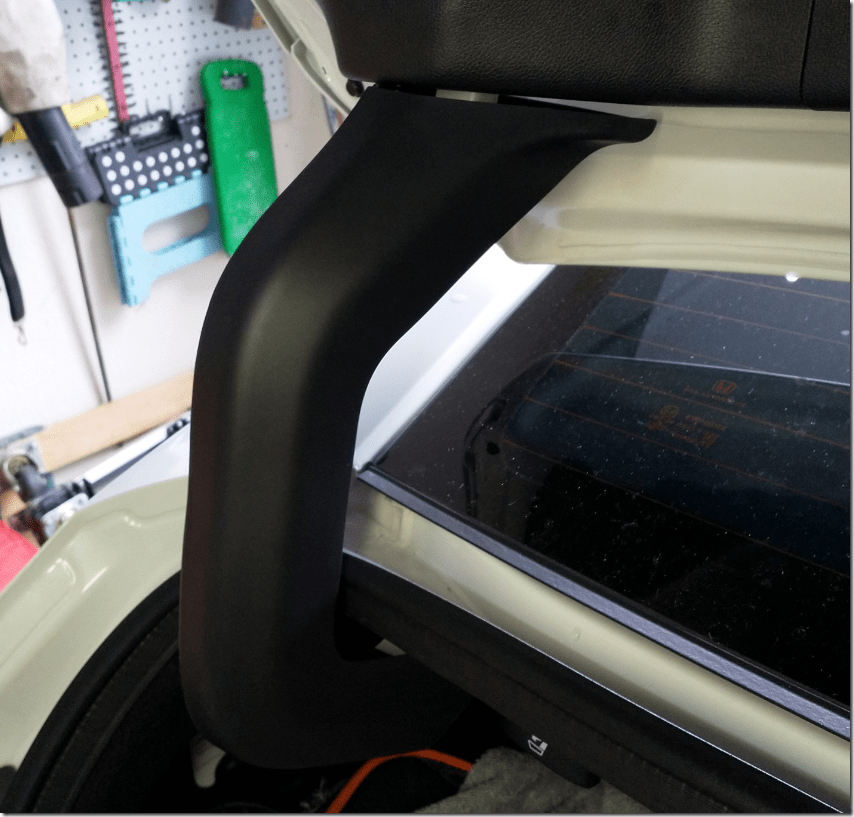
Remove the trim around the trunk lid hinges.
image

This is done on both sides.

image

image

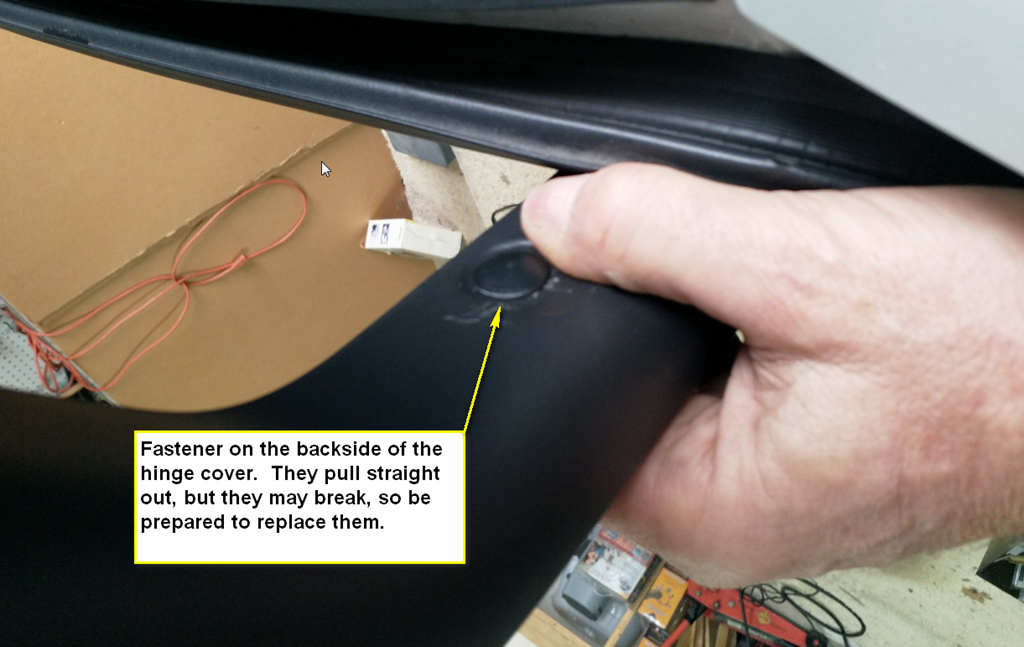
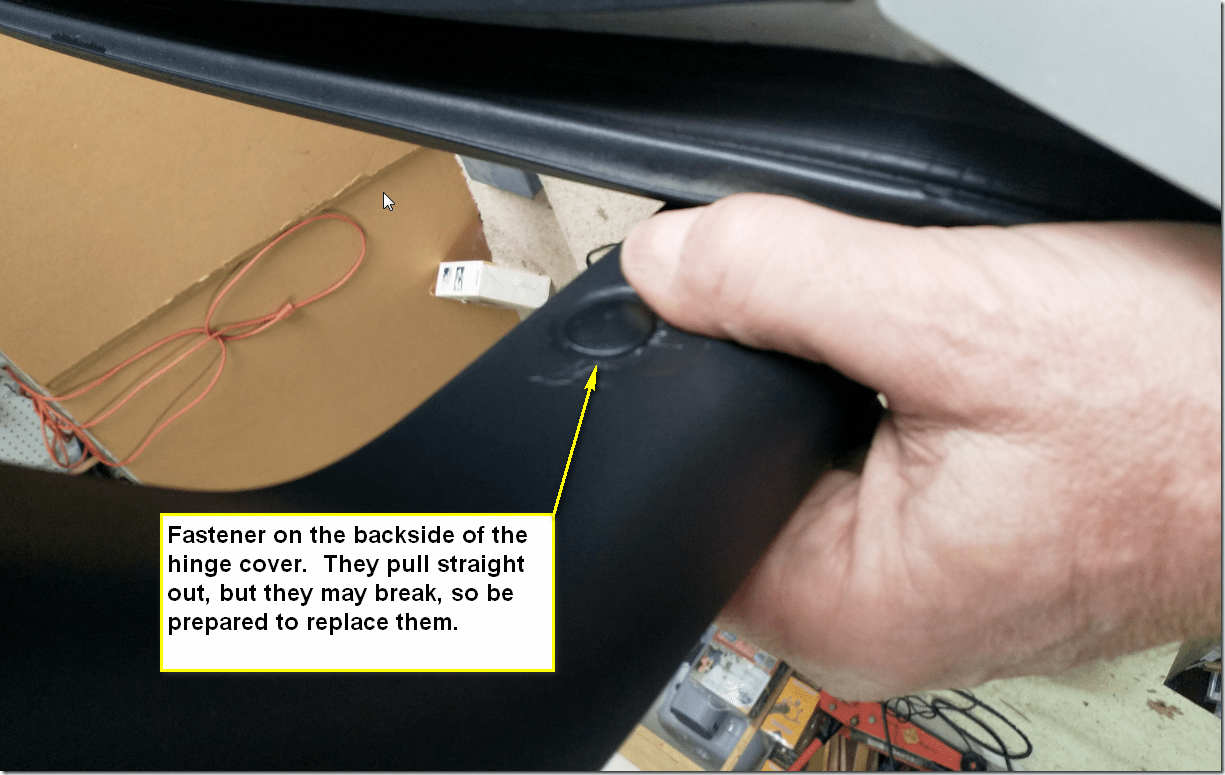
There is a single fastener on the back of each hinge that needs to be removed.  They pull out and it’s possible you will break them, so you might need replacements.
image

The hinge covers snap together.  Use your fingers to pry them apart and they should pull apart. 

image

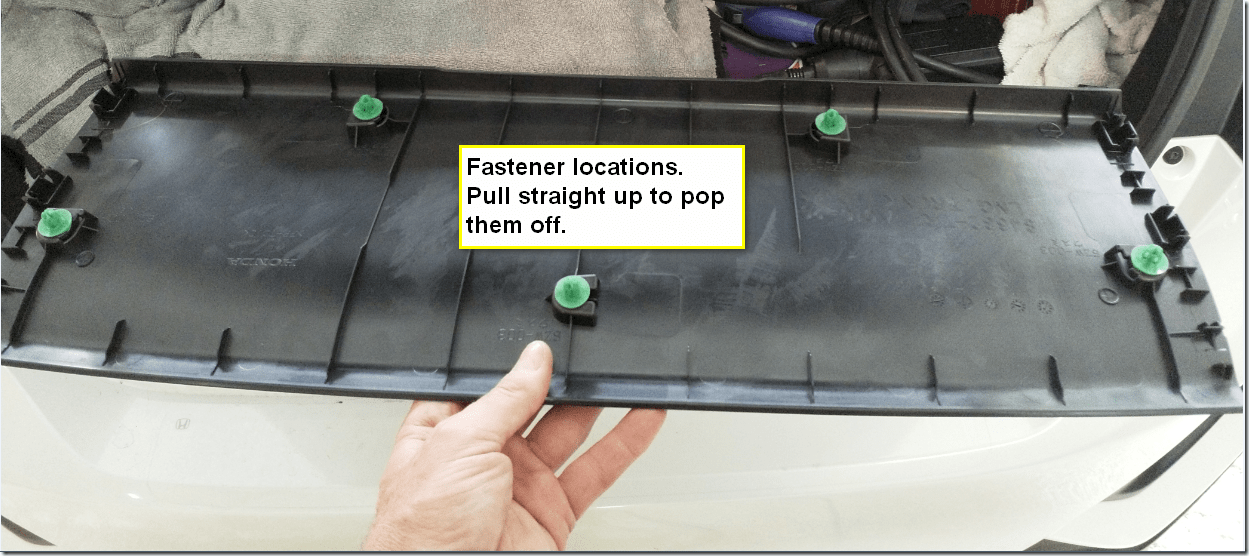
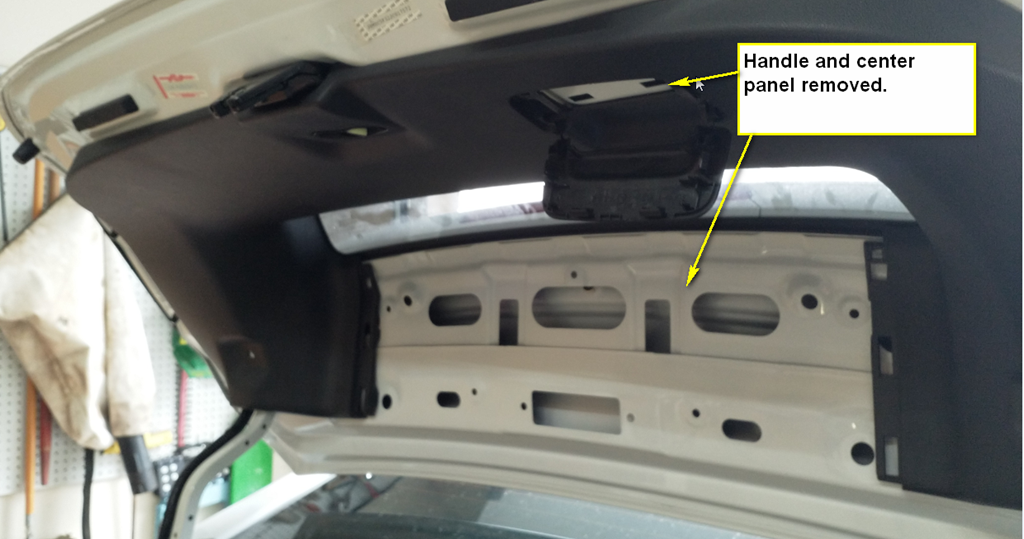
Remove the center trim cover by popping it off.  There are five fasteners and the upper corners holding it on.

image

Fastener location.

image

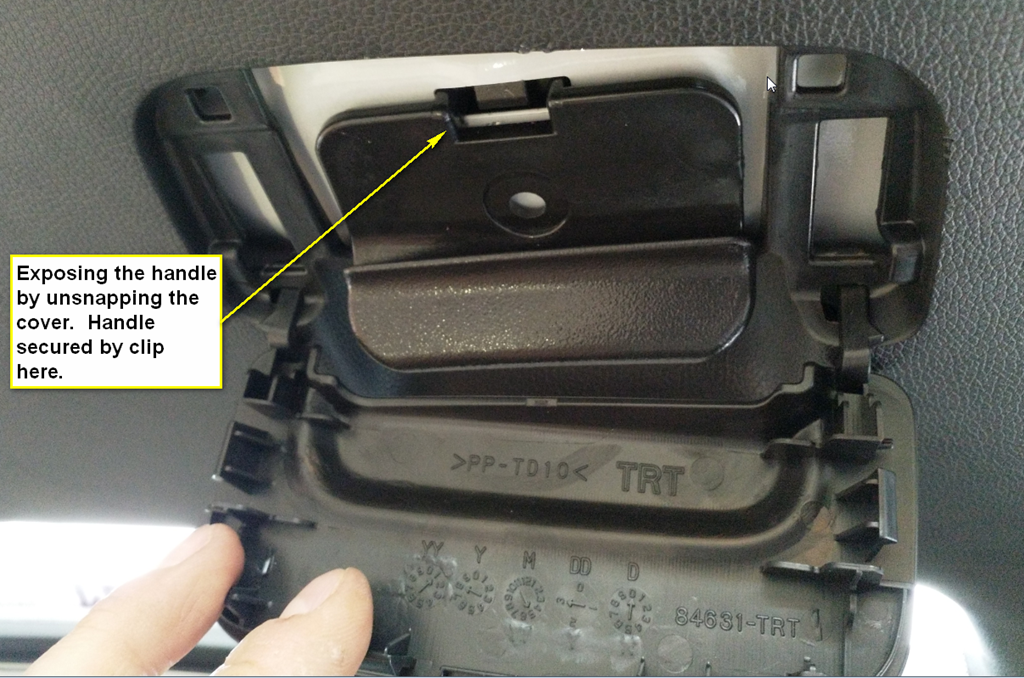
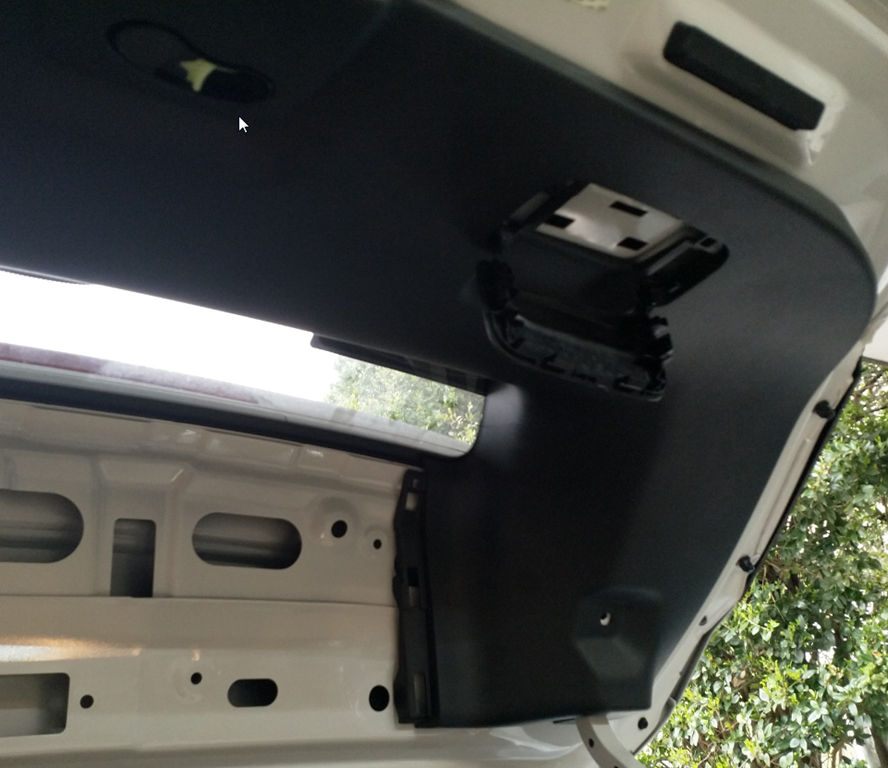
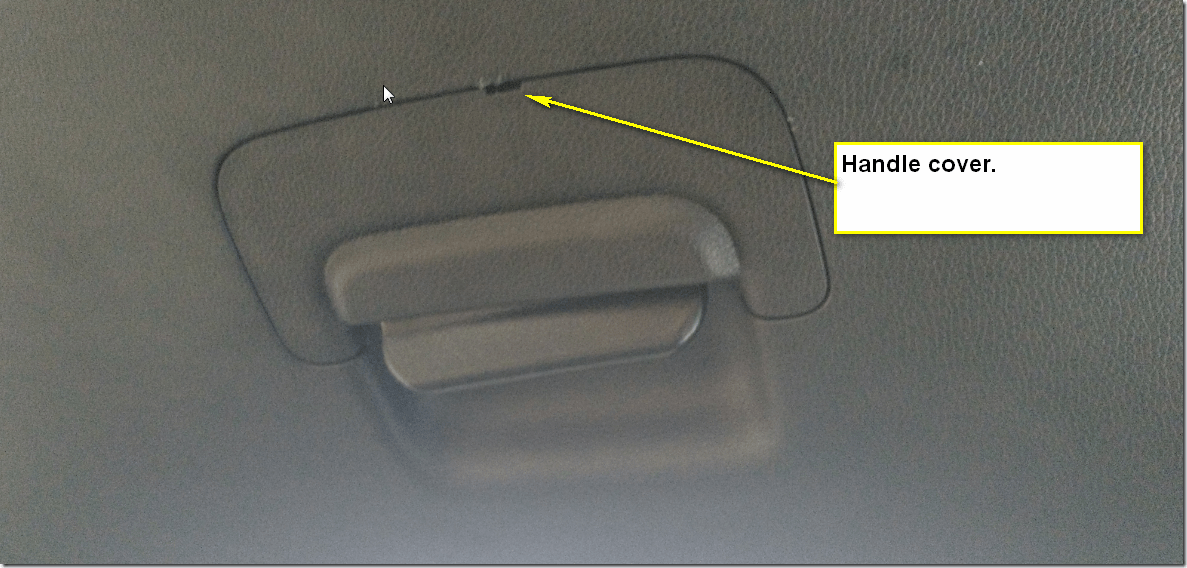
time to remove the pull handle.  Pry the cover.
image

Once the cover has been opened, you can see the latch holding the handle in place.

image

image

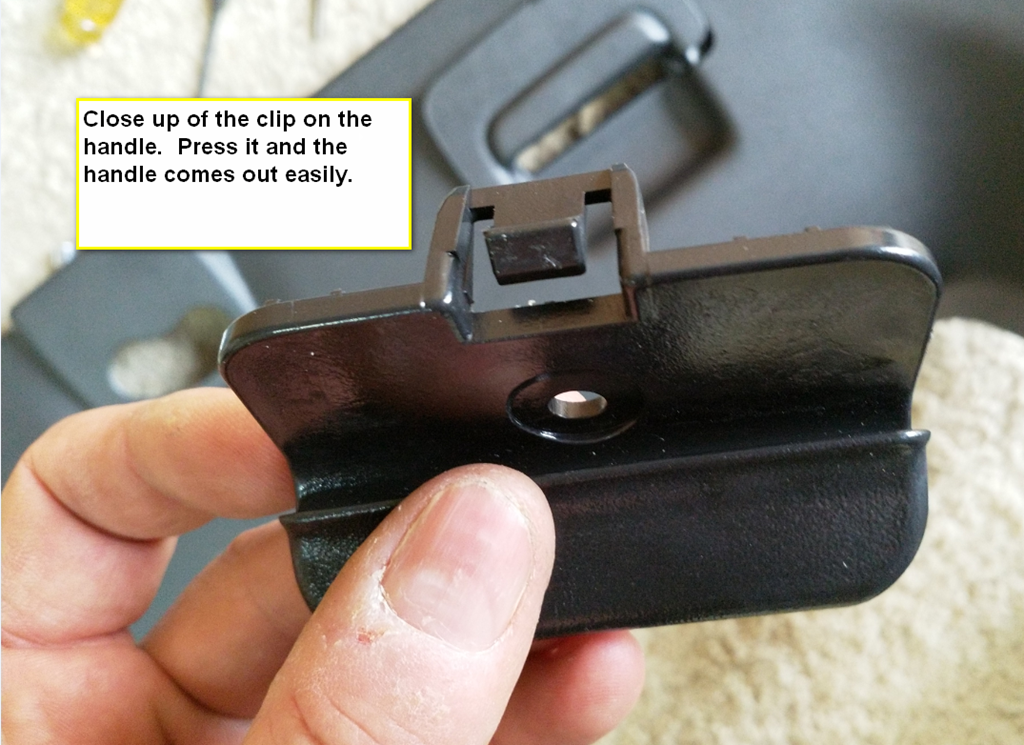
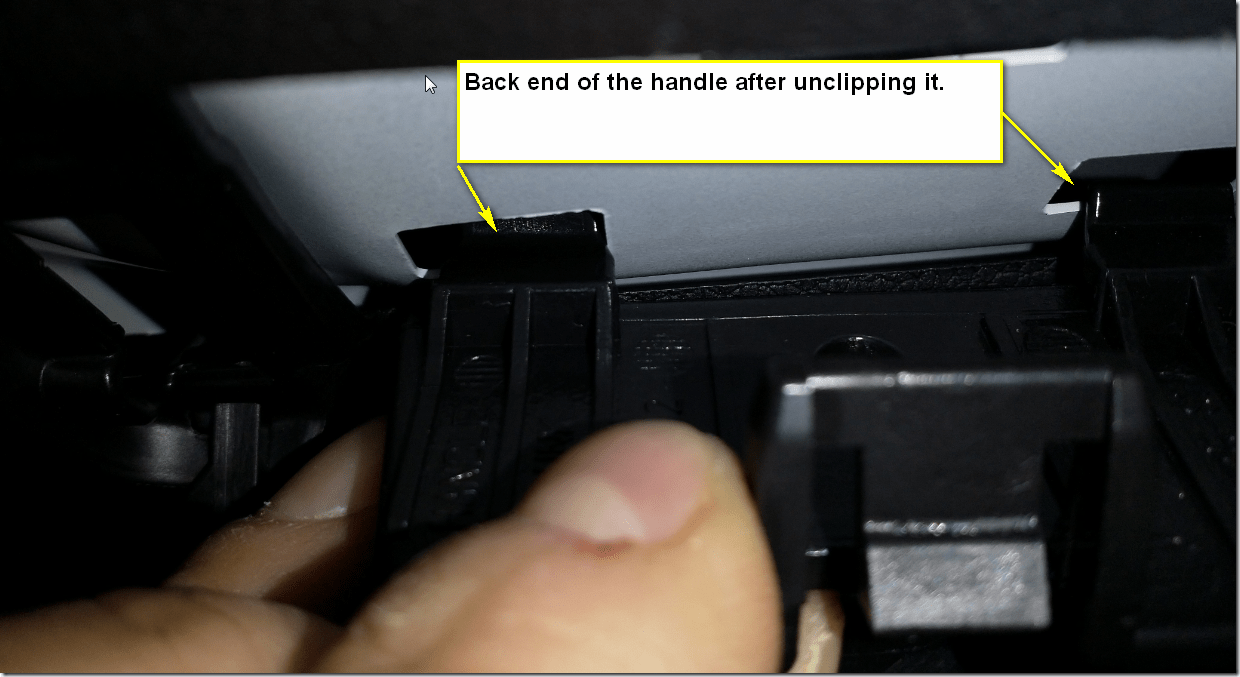
There is a single clip that can be released and then the handle tilts down to remove.

image

This shows the back end of the handle.
image

Now that the handle has been removed, you can begin removing the main trim piece.
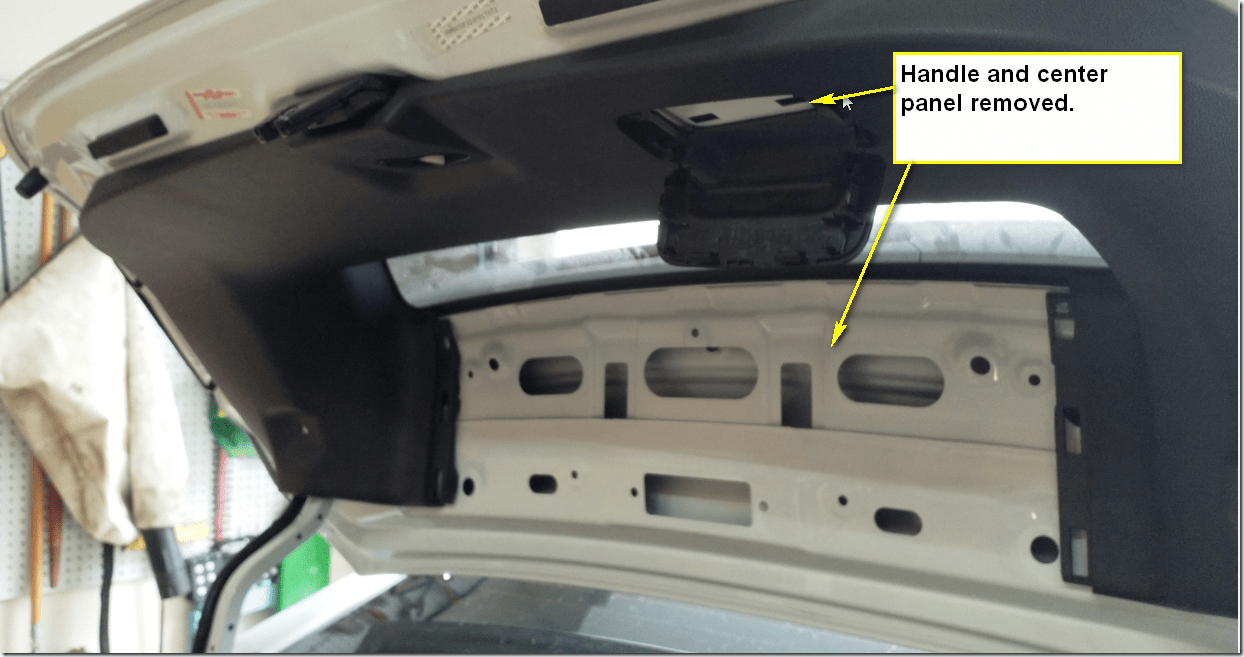
image

More shots showing the handle detail.

image

image

image

Fastener locations on the main cover.  They are the “pop” variety.  Pull firmly with your hand as close to the fastener as possible.
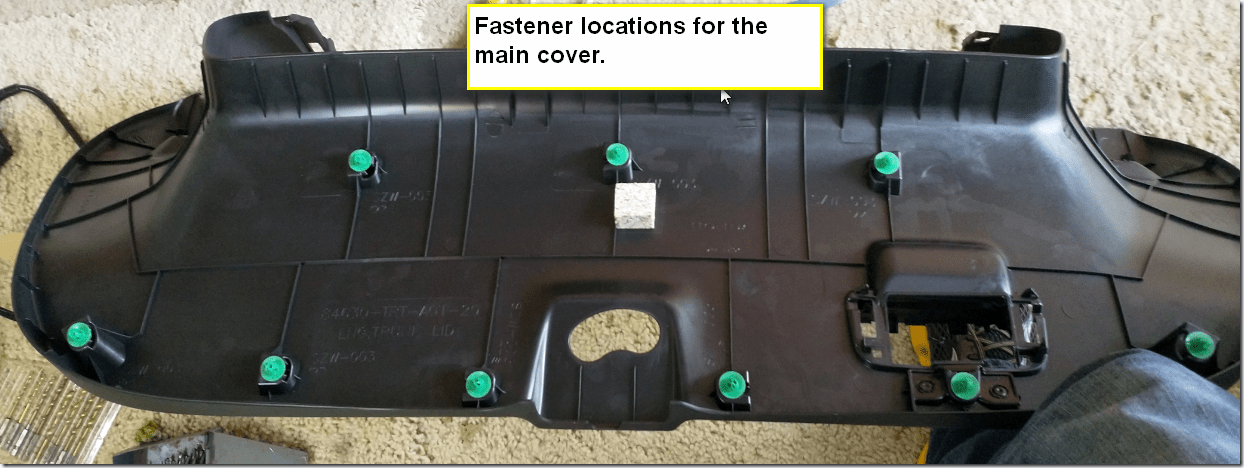
image

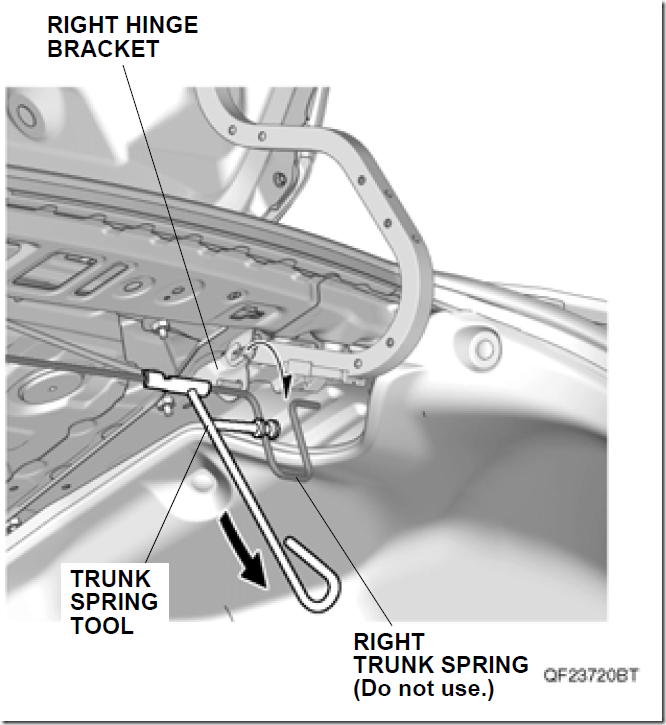
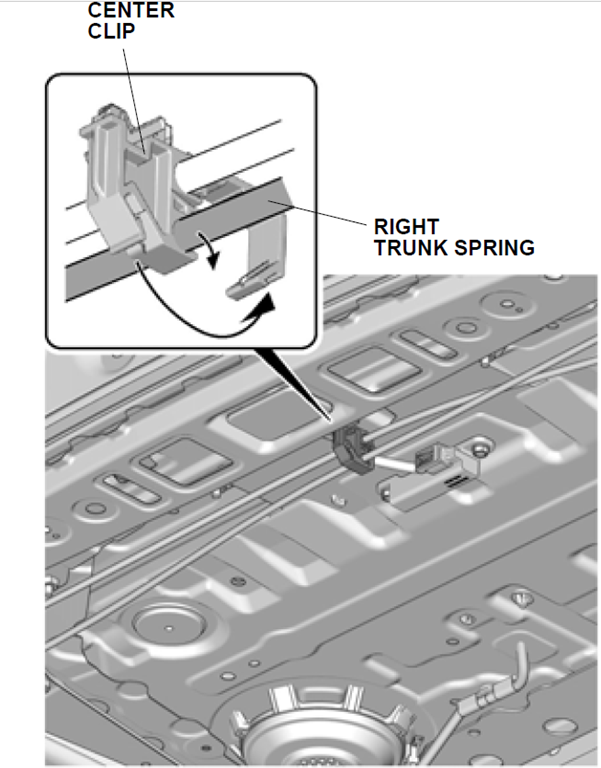
In the middle of the trunk there is a clip that holds the two trunk springs.  You can release the clip and open it up so the right spring can be moved when you “unload” it so you can remove it.  This clip merely keeps the springs from flopping around in the middle of the trunk.
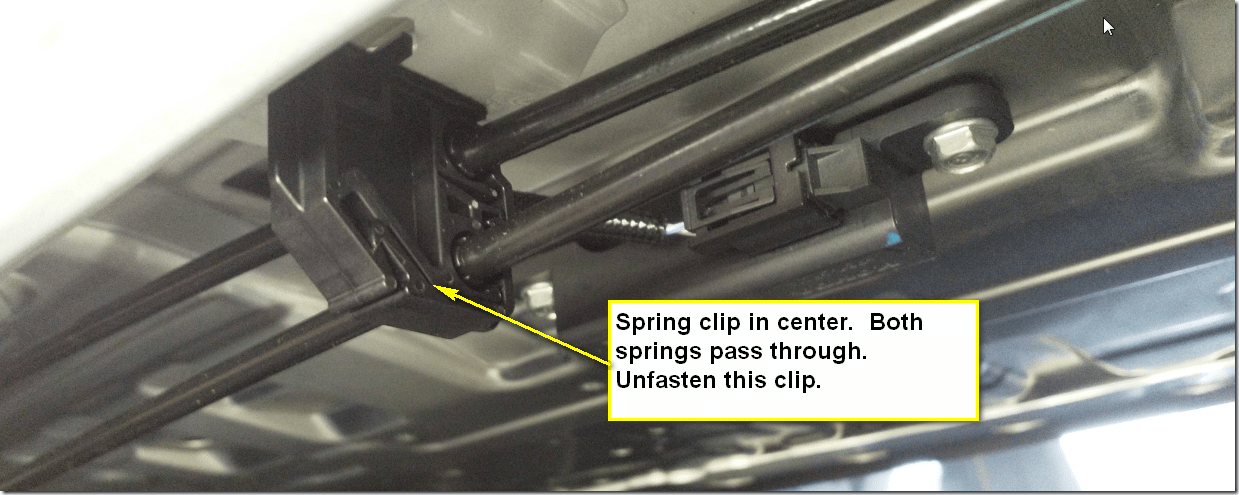
image

image

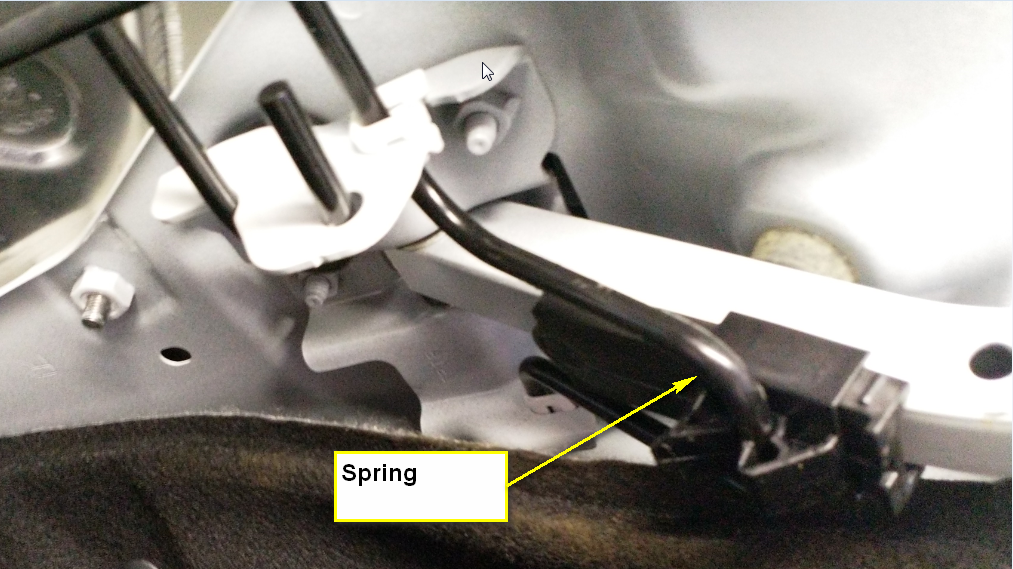
Due to the extra weight of the spoiler, a new right spring is installed.  There is a special tool for removing the spring, but I bet you don’t have one!  Neither do I.  I grabbed it with some channel lock pliers.  Twist downward away from the trunk hinge to pull it out of its clip and move it to the left.  The spring clip and the pad it rests on are held in place by the force of the spring.

image

image

image

The left side of the right trunk spring is hooked through some holes which hold it in place.  When you “unload” the spring you can shift it to the left to remove it.
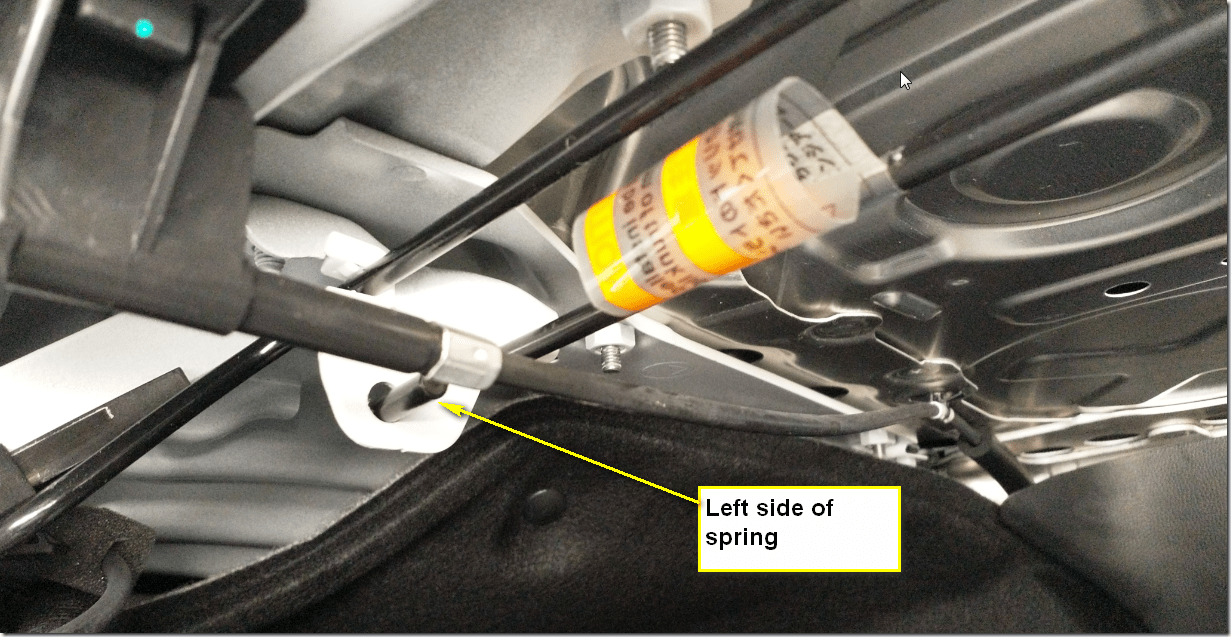
image

Here’s another shot of the spring after I put it back.  You can see some of the marks from the pliers where I grabbed it.

image

This shows the removal of the deck trim.  This is what you’ll attach the new spoiler to.  There are four bolts that are removed from the inside.  I believe they are 8mm. 

Note that the fastener in the middle is released from the backside by pinching and, when you do, the trim will fall off (assuming you’ve popped off the other fasteners), so be careful! 

The electrical connector is more easily disconnected after the trim is loose and you remove it from its grommet retainer.  Trying to disconnect it from inside will only result in sheet metal cuts.

image

Here’s the connector you will disconnect.  It’s easy once you have access to it!

image

This shows the fasteners on the right side of the deck trim.

image

The whole point of getting the deck trim off is so you can fasten the new spoiler to it.  You’ll need to drill, cut and file, so be prepared!

image

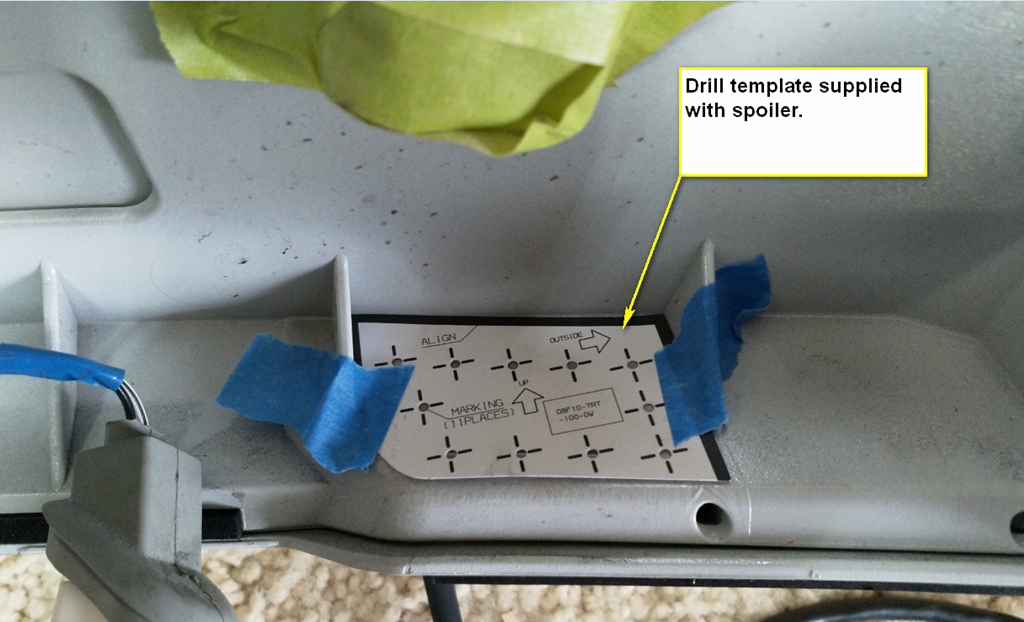
The first step is to create the cutout that will allow access to the “tie-wrap” or “zip tie” style retainer system.  Not sure why they didn’t just use some self-locking nuts instead of this nylon “zip tie” retainer.

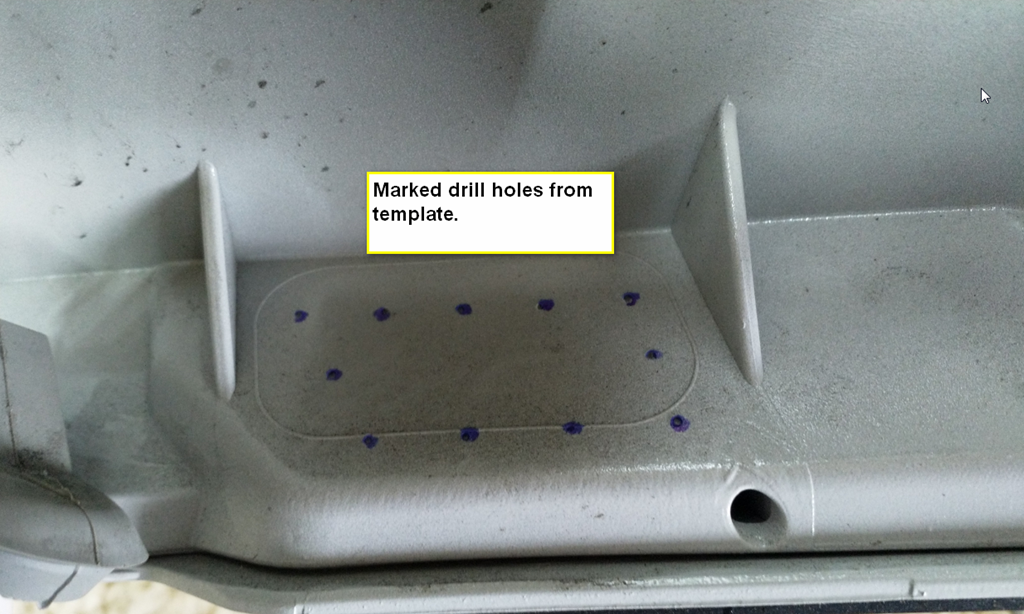
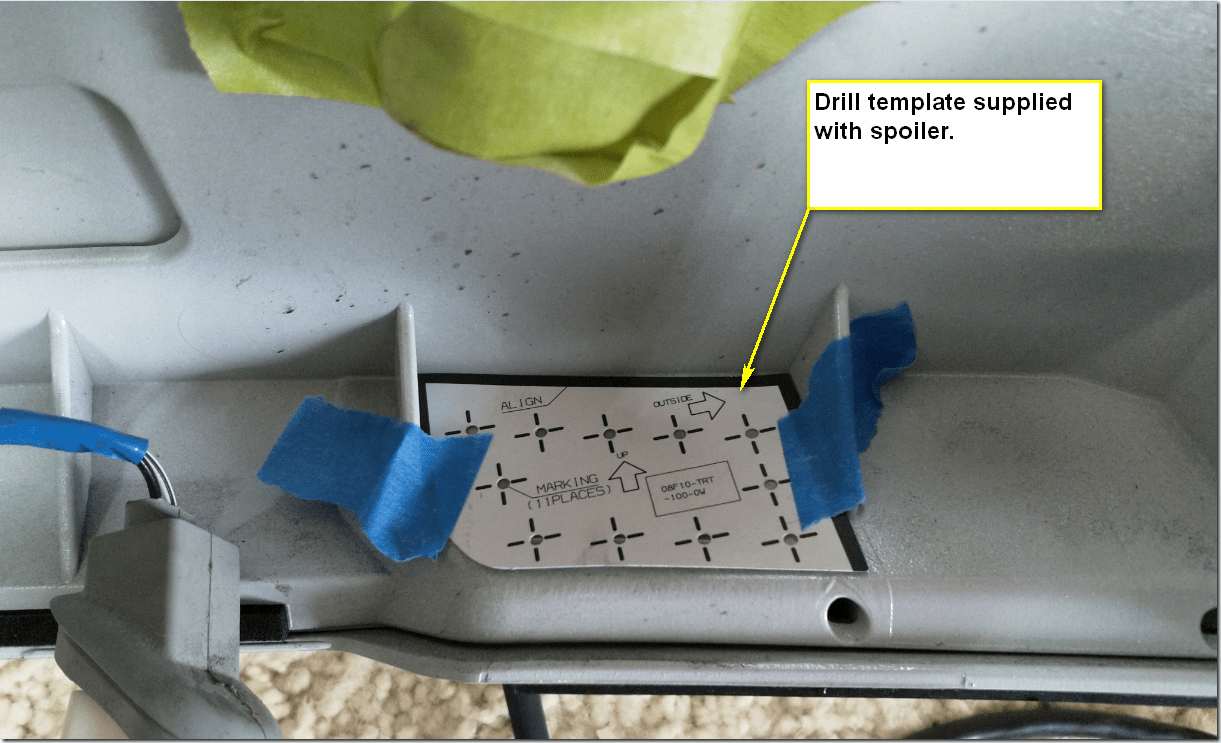
Use the drill template to mark the holes.  You flip it over to mark them on the other side.  It’s a very nice template!
image

Mark and use a sharp instrument to prepare for drilling.  Similar to how you would use a pin punch on a piece of metal for your pilot hole.

image

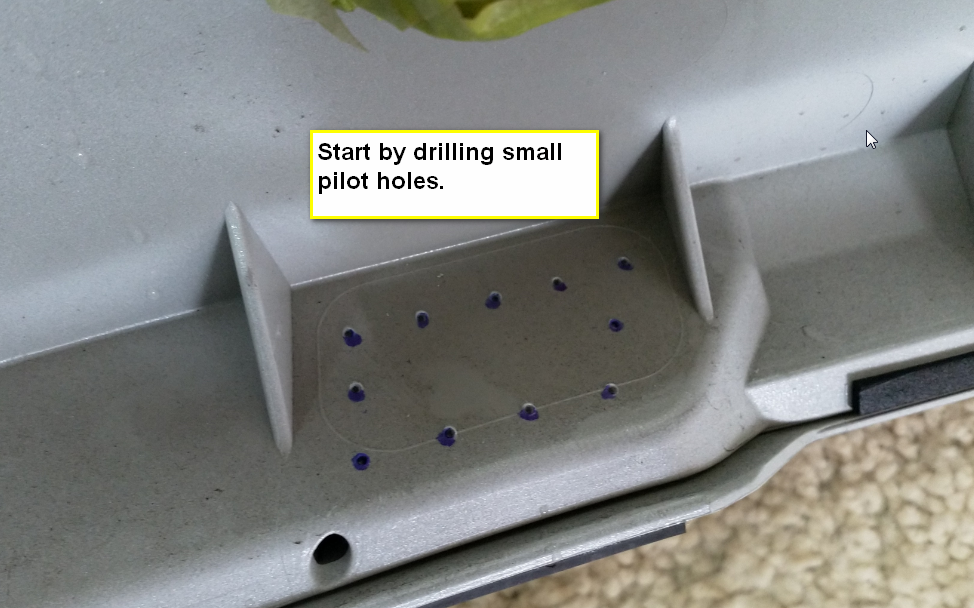
Start by drilling your pilot holes.

image

The instructions call for 3mm, 6mm, 8mm and then 10mm drill bits, but I found once it got big enough the larger drill bit was dangerously trying to grab the plastic and I felt that more filing would be a better solution.

image

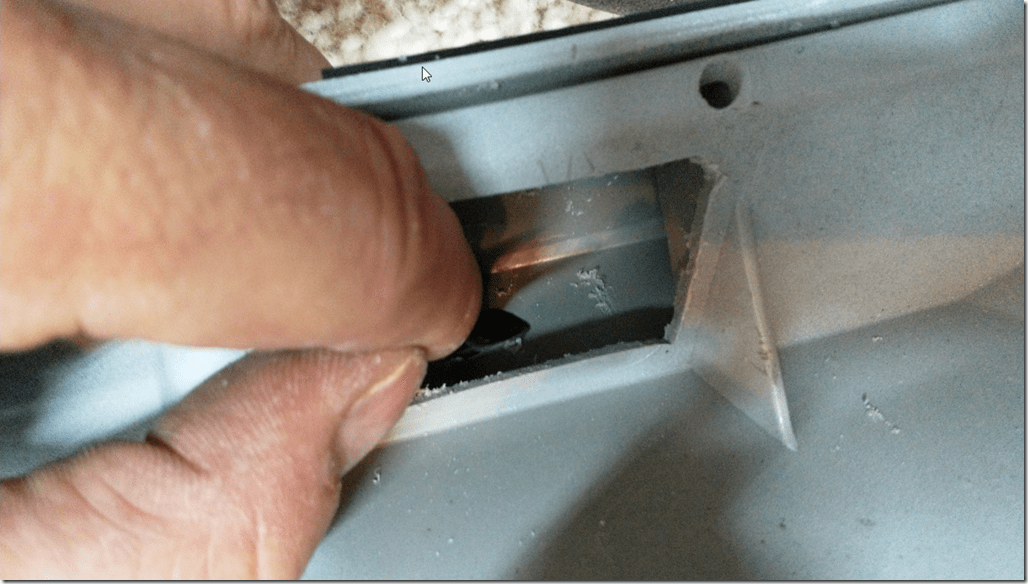
The “hole” (whole) idea is to make an access port so you can get to the deck lid spoiler nylon fasteners that feed through the other holes you will be drilling.  It doesn’t have to be perfect, as no one will ever see it.

image

You do this on both sides (duh!).

image

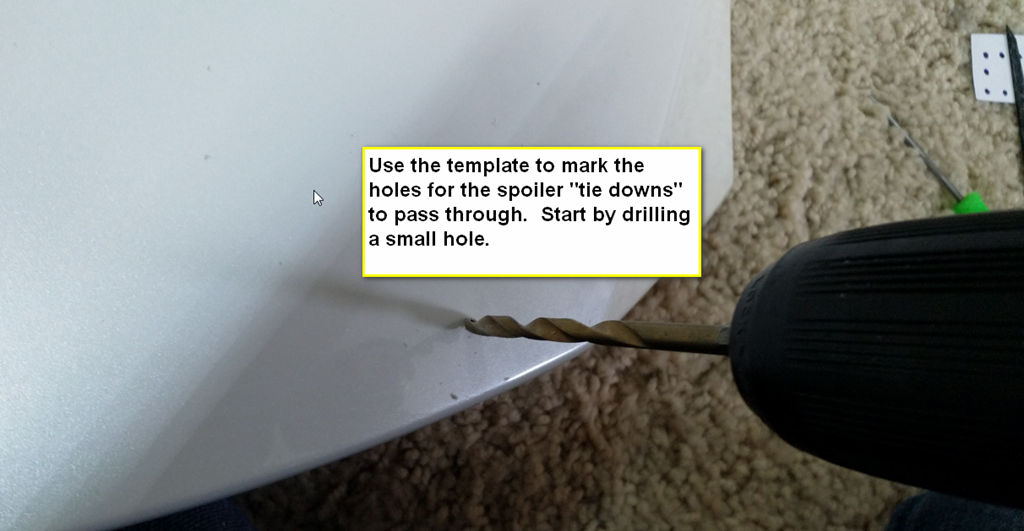
There is another template you place on the deck lid trim piece you removed to mark the locations of the holes you will drill in the deck lid trim.
image

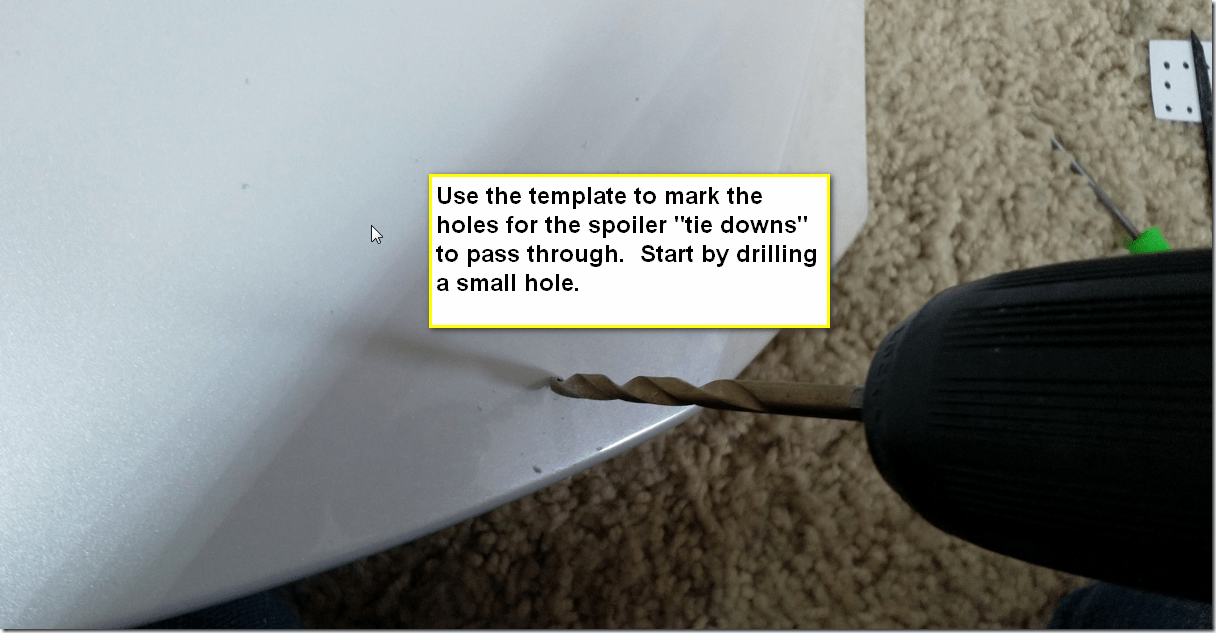
Then you drill the bigger hole.  You end up with a 10mm hole, which is roughly 25/64” or 13/32”.  A tiny bit bigger ain’t gonna’ make no difference.

image

Again, the idea is these nylon “zip tie” fasteners will feed through these holes.

image

image

And here’s where they end up.  I don’t have a picture of the fastener installed, but the instructions clearly show them. 

image

I also didn’t see any need to clip off the end since it never shows.

image

Note that the trim is fastened with lots of sticky, double-sided tape, as well as the two nylon fasteners on the ends.  Make sure if you have it in proper position before you remove the tape covers.  You’ll likely only get one chance!

image

Use the template to put masking tape in the correct locations to mark the edges of where the spoiler should be placed.  Perform some tests BEFORE removing any of the tape cover. 

Once you have the spoiler installed, you need to firmly press along its length to set the adhesive on the double-sided tape.  The instructions specify a roller, but I used a towel as a cover and lots of hand pressure along its length.

image

After you get the trim installed you will then place the plastic retainers on their “zip tie” ends.  Pull snugly, but don’t overdo it!
image

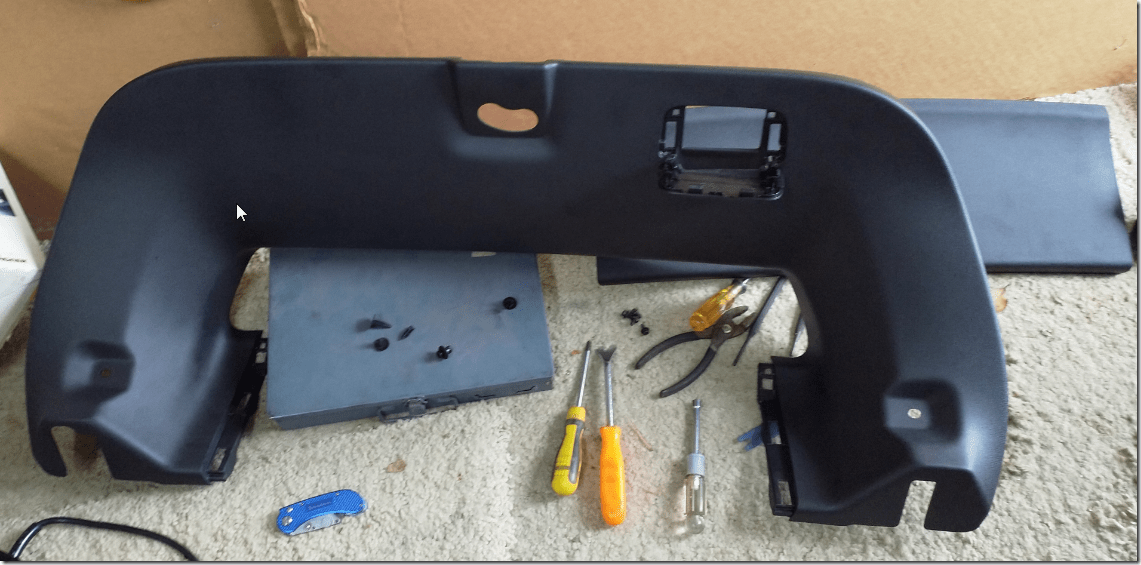
Now you can take your pile of trim pieces and put them back.  It’s easier putting them back, IMHO.
image

Posted in Auto Repair, Instructions | Leave a Comment »

MySite Profile and About Me missing from SharePoint User Menu

Posted by Russell Wright on January 15, 2020

I ran into this provisioning a Winshuttle SharePoint site after installation of SharePoint 2019.

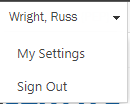
When you click on the link looking for your MySite profile in SharePoint (on-premise 2019) you don’t see the About Me link.  You see this.
image

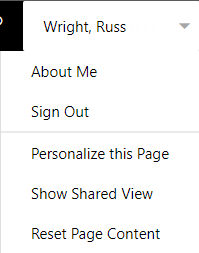
What you want to see is this.

image

This is because the Site Collection feature for SharePoint Server Publishing Infrastructure is not activated.

image

Keywords:

SharePoint 2019, SharePoint 2016, SharePoint 2013, SharePoint 2010, Site Collection Features, Activate SharePoint Publishing Feature, Team Site, About Me, Personalize this Page, Show Shared View, Reset Page Content, Sign Out

Posted in Computer Software, Office 365 | Leave a Comment »

Setting the maxlength Attribute on a Multiple Lines of Text Field in SharePoint Online

Posted by Russell Wright on August 15, 2019

I had a situation where a person who created a SharePoint survey wanted to limit the amount of text that could be entered in a Multiple Lines of Text field.  There are many proposed solutions, but I was looking for the simplest.  Since the field is rendered as a “textarea” control you should be able to set the maxlength attribute to limit the number of characters that can be entered.  Here’s a bit of JavaScript that can do that. 

I first started with this post, but it was a little light on details, as there was no reference to JQuery.

http://sharepoint.sureshc.com/2016/04/how-to-set-character-limit-for-multiple-lines-of-text.html

Some prerequisites. 

  1. You must know how to add a script editor web part to a SharePoint page.  That’s where all the code goes. 
  2. The code must be placed on each page where you want to control the length.  That normally means NewForm.aspx and EditForm.aspx.
  3. You need to get the ID of each of the controls whose length you wish to limit.  These are pretty ugly in SharePoint.

You must first reference a JQuery library.  In this case, I’m pointing to one on the internet.  You can also download the library and place it in SharePoint and reference it from there.

If you notice we are selecting the control by its ID.  After the control is selected, its maxlength attribute is set to 15 (in this case).

//code.jquery.com/jquery-3.2.1.min.js
< script type="text/javascript">
$(document).ready(
    function() {
  $("textarea[id*=’ctl00_ctl30_g_2e673377_8091_422f_a4a7_026fa9b214d4_ctl00_ctl02_ctl01_ctl00_ctl00_ctl04_ctl00_ctl00_TextField’]").attr(‘maxlength’,’15’); }
  );
< /script>

In order to find the ID of the control, you can use the Edge or Chrome developer tools.  In either browser, you can press F12 to start the developer tools.  In the upper left corner you’ll see the element selector. 

image

Once you click the element selector you can switch to your browser window and select the control you wish to inspect.

image

You can see the ID of the control and copy/paste it for later use in your code.

image

Place your code in a script editor web part on the page (edit the page and add the web part to the page).

image

Here you can inspect the code again and see that the maxlength attribute has been added.

image

Posted in Office 365 | Leave a Comment »

BH-M32 “Trucker” Headset from Amazon

Posted by Russell Wright on July 19, 2019

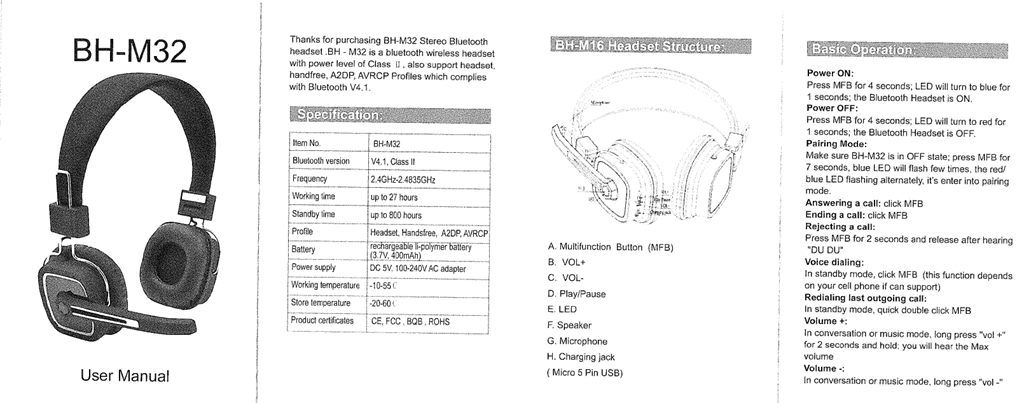
Here are the instructions for the BH-M32 “Trucker” headset on Amazon.  Ordered one of these on Prime Day and, so far, the reviews from my coworkers have been positive on the sound.  I spend lots of time on web meetings:  Skype, Teams and Zoom.  Thought I would put the instruction manual online so I wouldn’t forget how to push the buttons.

I still need to test it out from a real noisy location with my cell phone to see how it functions in that type of environment.

BH-M32-1

BH-M32-2

Posted in Instructions | 1 Comment »

Installing an Engine (ICE) Hour Meter on a 2018 Honda Clarity PHEV

Posted by Russell Wright on June 29, 2019

Love my Honda Clarity…and we also own a Prius Prime.  The Prius has lots more tech than the Honda, especially when it comes to monitoring the operation of the ICE (Internal Combustion Engine).  One of the simple upgrades is to install an engine hour meter so you can really keep track of how much the ICE is running.  This is most important for maintenance reasons.  And, if you’re concerned about the environment and don’t want to “over oil change” it is also a way to make sure you don’t throw out completely good oil.

Following the advice of KentuckyKen on the InsideEVSForum I purchased a low cost hour meter on eBay.  Shipped from the US, mine cost $6.98.  I purchased another from Hong Kong for $4.47.  I figured I’d do one for the Clarity and then try one for the Prime.

While there was a part of me who wanted to get a mechanical hour meter, I determined that not having to find a 12V wire that was energized when the ICE was on was a benefit of using one of these self-powered meters.  There is no power required as the meter has its own internal battery.  When it runs out, I’ll just buy another.

image

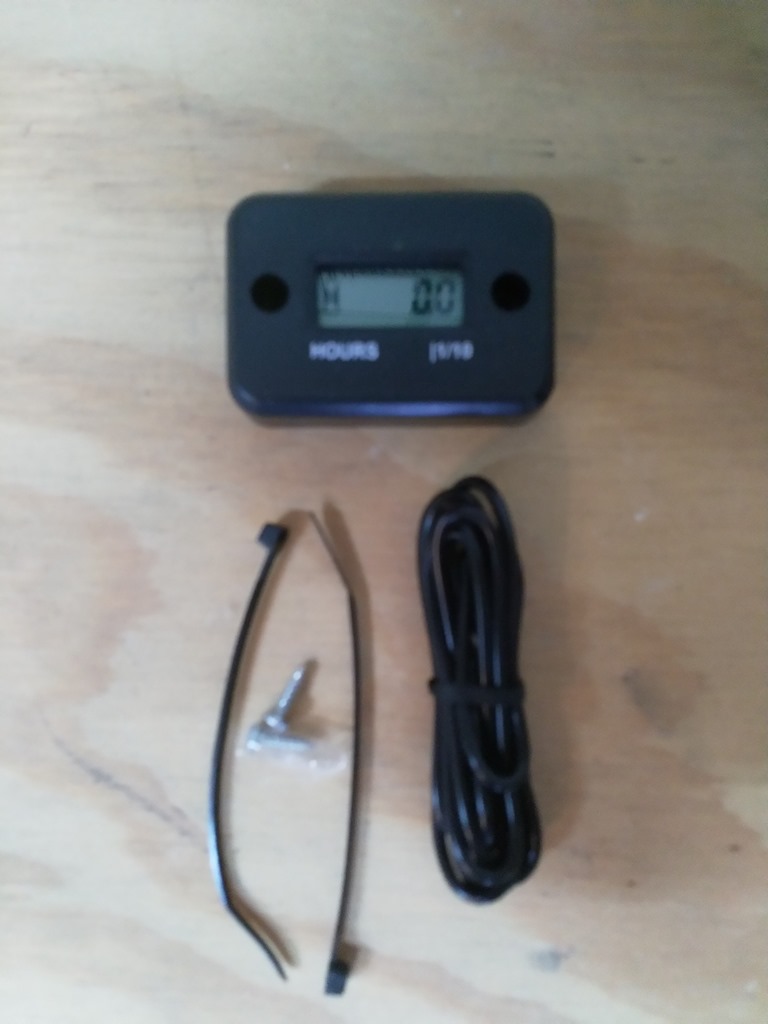
Here’s how it came.  Now to connect it to my snowmobile…oh, I live in Texas…I mean my motorcycle.

IMG_20190629_065104

The package contents, unpacked.

IMG_20190629_065423

The installation instructions.

IMG_20190629_065307

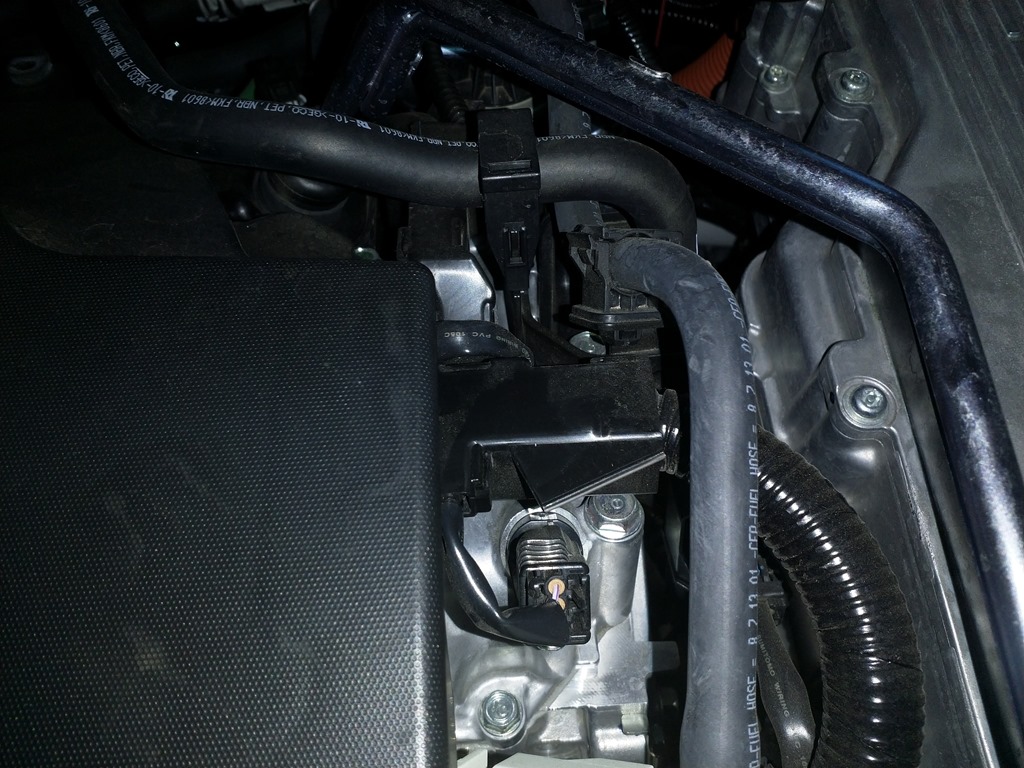
For a mounting location, I like the plastic cover over the wires.  I think I can use the short screws through the meter to attach to the plastic cover without damaging anything.

IMG_20190629_065650

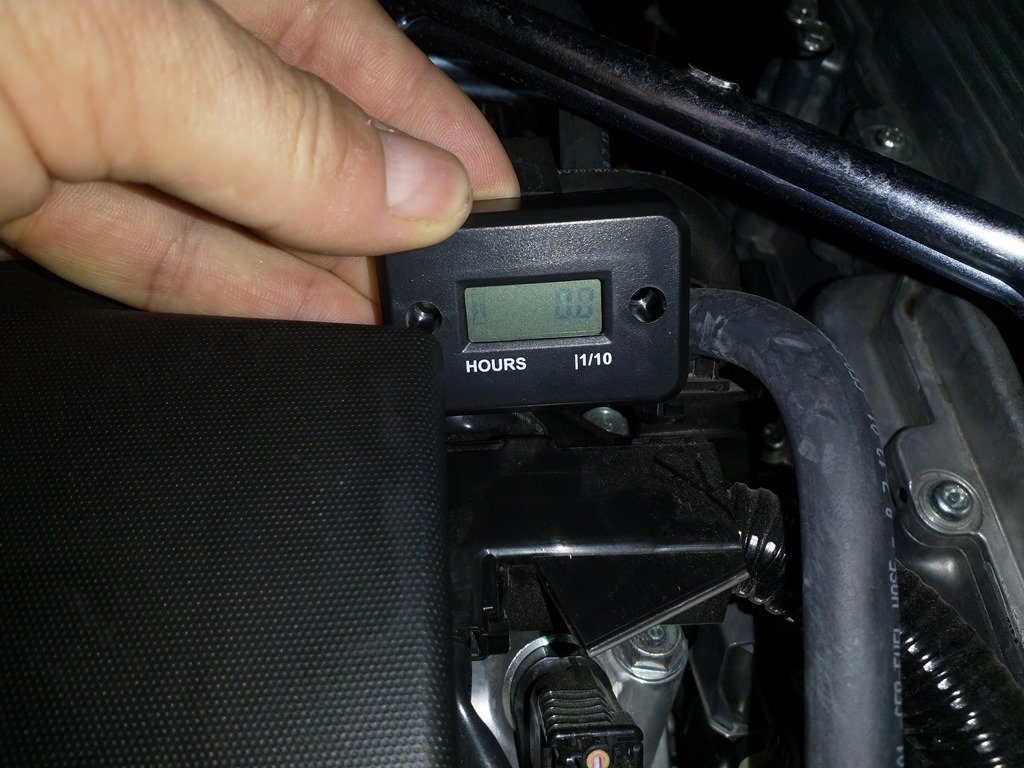
The meter is just the right size to fit there.

IMG_20190629_065715

See how it will look when installed?

IMG_20190629_065704

Let’s remove the cover to expose the spark plug coils.  The cover just snaps in place with rubber grommets, so just pull upward to remove.  Here are a couple of pics to show you what the part looks like.

IMG_20190629_065216

IMG_20190629_065223

Now we have the coils exposed.

IMG_20190629_065204

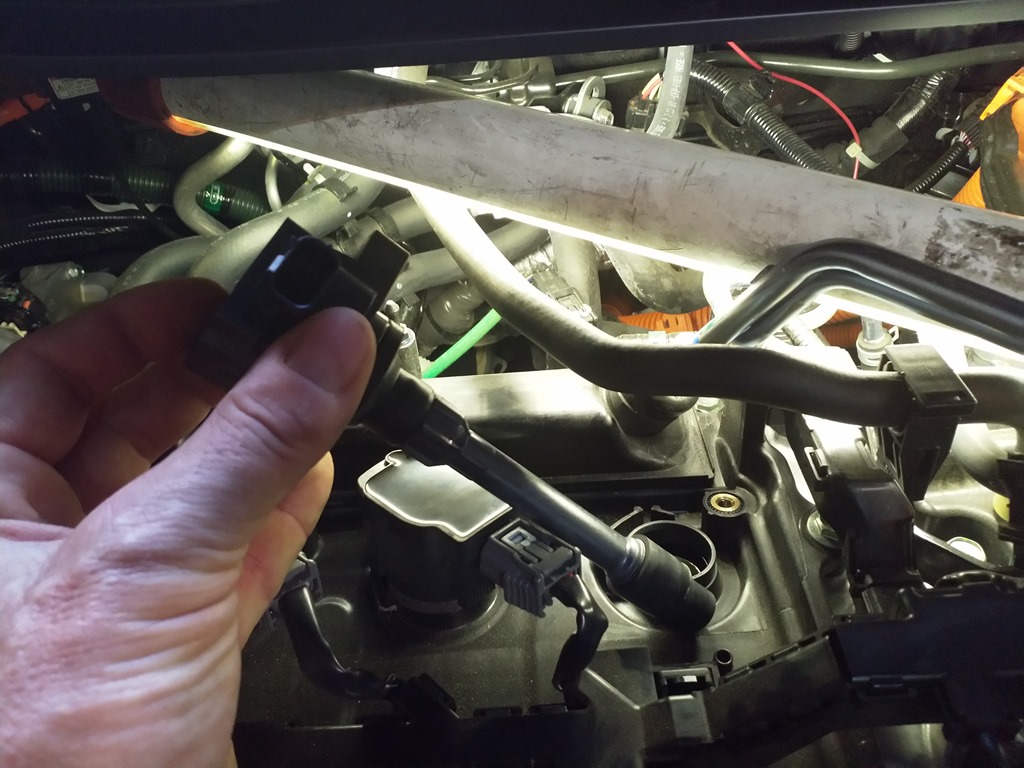
The easiest way to do this is to remove the coil.  Start by pressing the tab on the connector near my thumb end and gently pull on the sides to disconnect.

IMG_20190629_065957

The coil is held in place with one 10mm bolt.  Simply remove it and pull up to remove the spark plug coil.  For all you old-timers, remember when there was one coil with spark plug wires running all over the place?  Now the low voltage wires are run to the individual coils and it makes for a much neater installation.  This EE loves me some electronics!

IMG_20190629_070308

Here’s the fully removed coil.  So simple and elegant.

IMG_20190629_070323

While you have the coil removed you can wrap the wire around it.  Try and keep it up off the seal.  What will happen is when you reinstall the coil you’ll find the wire is snugly compressed and, at least on my installation, it doesn’t appear to be going anywhere!  Be sure and leave enough to connect to the meter.

IMG_20190629_070856

This is a little hard to see, but the wire just slips into the slot in the back of the meter and is held in place by compression.  Use a small screwdriver to shove it in place.

IMG_20190629_070921

So here it is installed and I’m testing it.  Already have 0.1 hours (6 minutes) on the meter.  Had to run it around the neighborhood in Sport HV mode.

IMG_20190629_075436

And here we are with the screws installed.  I’ll remove this in a bit and make sure the tips of the screws are not causing any issues.

IMG_20190629_075411

Video:

Now let’s get out the label maker and put a label on it so those folks peeking under the hood will (hopefully) understand what it is.

IMG_20190629_080149

After running around for a bit, punching it in Sport HV mode to get some hours on the ICE.

IMG_20190629_090100

Posted in Auto Repair | 1 Comment »

Installing a Rostra FrontZone 250-1920-FZ Ultrasonic Parking Assistance System on a 2018 Honda Clarity

Posted by Russell Wright on June 9, 2019

I love my Clarity.  But, I don’t feel comfortable knowing where the long front end is when I park the car.  So I embarked on adding some ultrasonic sensors to the front.  I suppose I could’ve added a camera, but I was looking for something a little less obvious in the cab.

This is not for the faint of heart.  It requires drilling holes in the bumper of your new car.  I was, however, able to do this without removing the bumper.

I ordered the Rostra FrontZone 250-1920-FZ from SavingLots.com.  $93 + 12.50 shipping:  $105.50.  I found the kit to be very complete and professional.

Something to note.  The Rostra system has a CAN interface that is supposed to detect when the vehicle is moving a certain speed (off at 10 mph and on at 6 mph) and disable/enable the system.  This only works on 11-bit CAN systems and my experience with attaching it to the OBDII port with the included connector has been disappointing.  I keep getting the E0 message.  At this point I’m not sure whether there is an incompatibility issue or not, as I understand most CAN-B (29-bit) systems can understand CAN-A (11-bit systems).  I have sent a question in to Rostra, but as of 6/9/2019, they have not responded.  I’m going to be rather torqued if they never respond!

“If the ECU is disconnected or getting incorrect information from the CAN-BUS interface, “E0” will be displayed and the system will sound 5 beeps consecutively.”

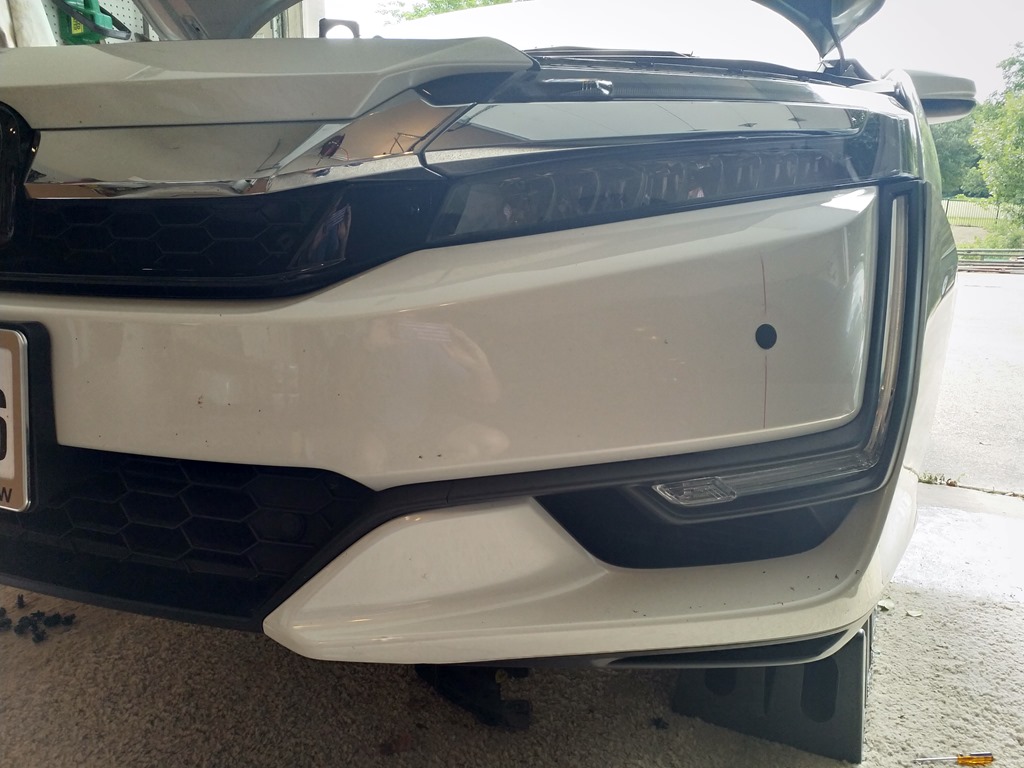
I first had to determine where to mount the sensors.  I decided I wanted two of them to be low (closer to the curb) and the others to be in the approximate locations recommended by the installation template.

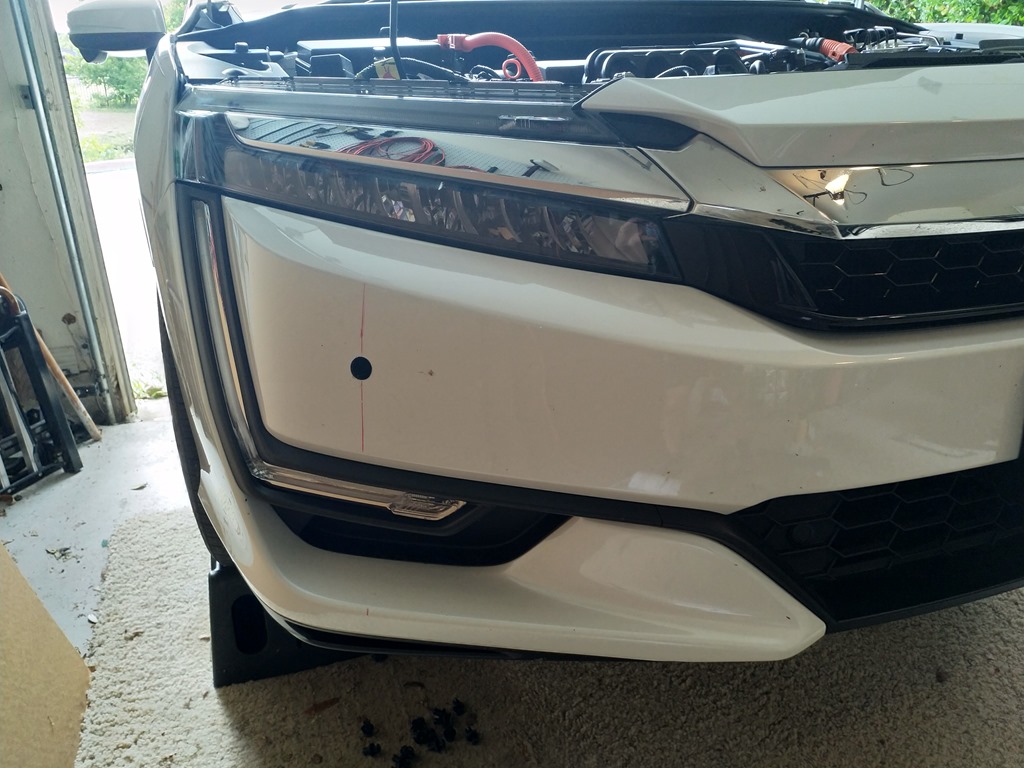
For the sensors in the bumper, I measured from the car centerline…approximately 795mm.  After measuring, I pushed on the bumper and looked behind it with a light to make sure I could see where I was pressing and there was adequate clearance.  I marked the distance with a grease pencil and then measured to center the vertical distance.  I used a level to plumb the measuring lines.  I double and triple checked my clearance.

IMG_20190527_162615

IMG_20190527_162630

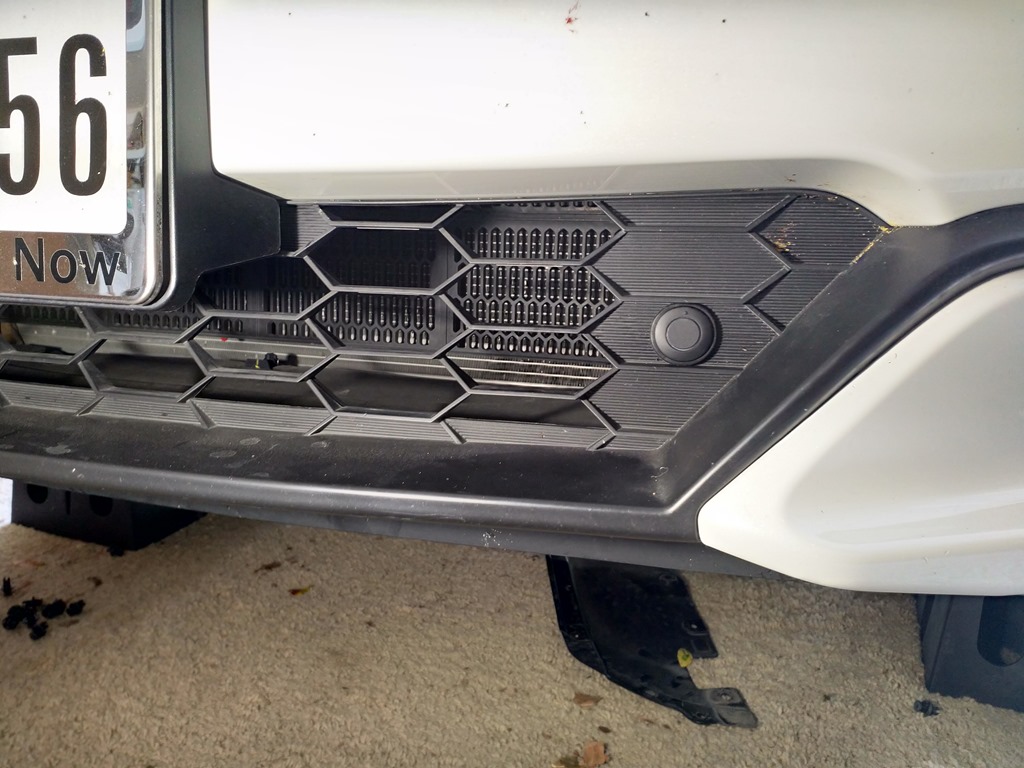
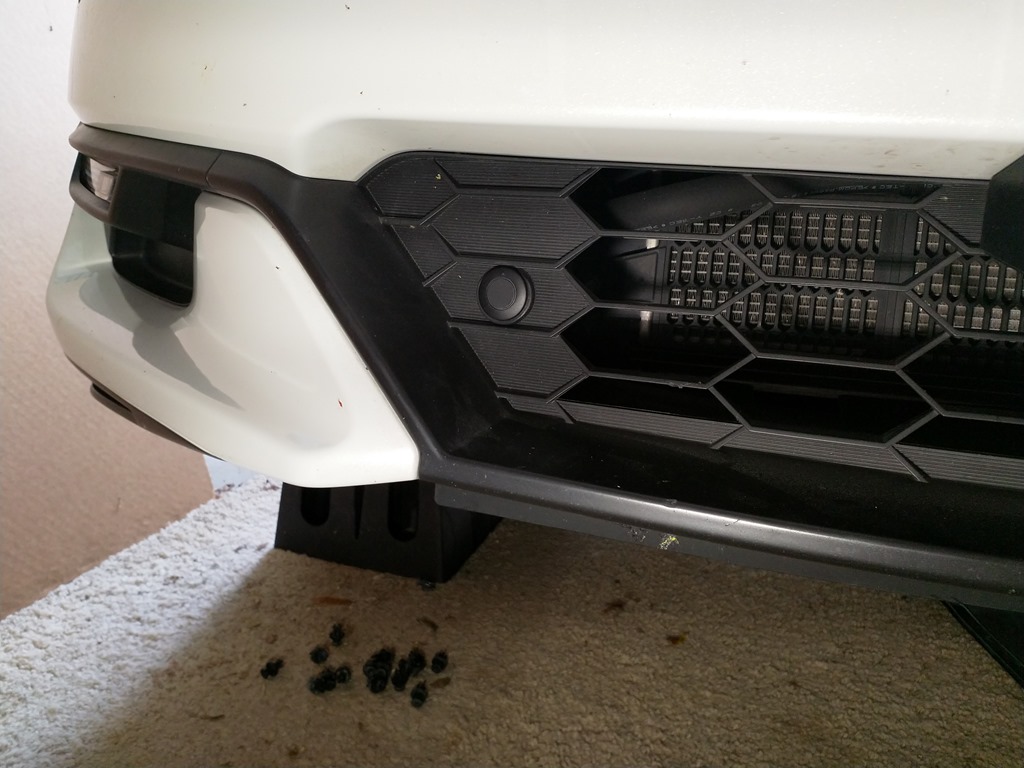
For the low sensors, I installed them in the black plastic trim area.  Perhaps I should’ve gone lower, but this seemed to be a good compromise of keeping them at the recommended 12” minimum height.  I drilled these first and actually used the drill for a metal bumper, so I had to install the rubber grommet retainers.  No big deal…they fit nice and snug.  And no painting required!

IMG_20190527_162816

IMG_20190527_162826

I painted the two mounted in the bumper with some white enamel paint.  I looked at trying to exactly match the pearl, but the would’ve required spending $75-100 on a multi-step paint.  Close enough.  Finish them off with some rubbing compound and a little wax.

IMG_20190527_163020

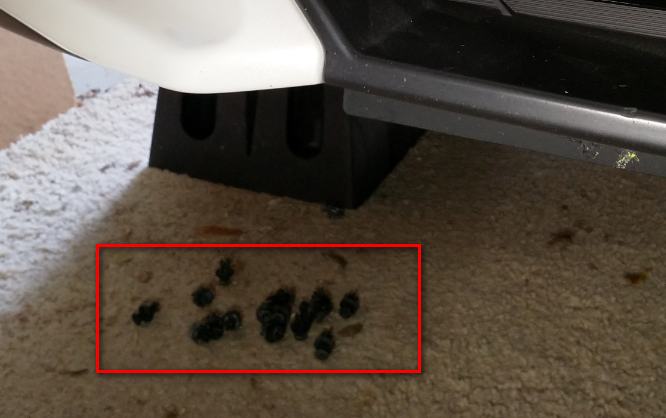
The wiring part came next…and this was not easy.  I drove up on some ramps and removed one of the under covers.  This required removing 14 or 20 clips and a couple of bolts.  Not hard, just watch out for dirt dropping in your face!  I didn’t get any good pictures of this part of the process, but here are the clips and the cover, so you can get the idea.  This allows access for the wiring.

To get the wiring to my holes in the bumper, I used a piece of stiff wire to which I taped the ends of the wiring harness and fed them from below to the hole in the bumper.  I used a pickup tool or pliers to grab the end of the harness I was feeding from below.

image

image

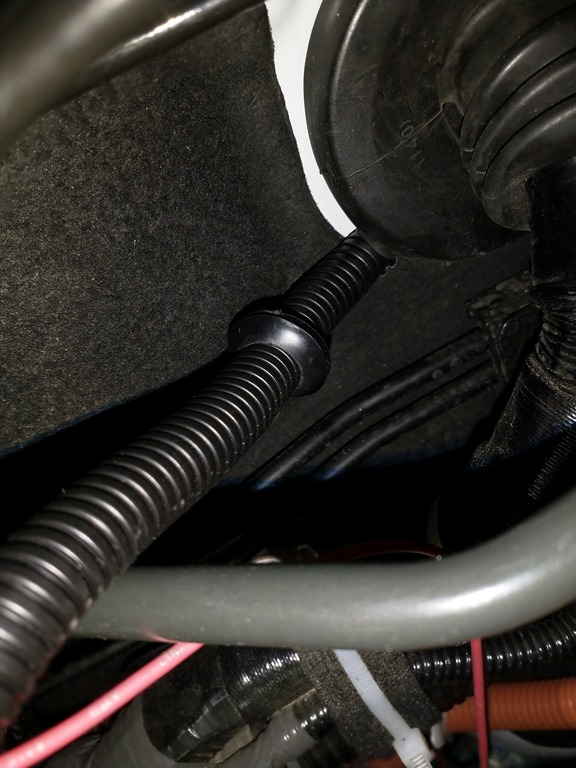
Now for the part that took me hours to figure out.  I needed to get the harness through the firewall, but I really didn’t want to be drilling holes, mainly because there’s just not much room to work.  After messing around for hours, I finally determined I could shove the harness through the side of one of the big wiring harness grommets.  Here are some pictures of this from the firewall side.  Of course, you have to have access on the cabin side as well.

This first one shows how I was able to lift up the side of the grommet and, using a long screwdriver, pull it away from the edge enough to shove the harness through.  You can see the grommet that was on the wiring harness that would be intended to fit in a drilled hole.

IMG_20190527_194340

Here’s another shot showing more of the large factory wiring harness grommet.  The red wire is my trailer hitch power wire I ran when installing my trailer hitch wiring.

IMG_20190527_194315

And here’s another shot.  There is a factory plastic clamp (unused) that I commandeered as part of the wiring harness retention system.  I subsequently secured the harness with wire ties.

image

To access the cabin side of things, you can remove some trim pieces to gain access.  There are basically four trim pieces I removed.

The driver’s dashboard lower cover.  It just pulls away when you pull in the clip areas.  No screws to remove.

image

Here are some pics of the back side of the dashboard lower cover so you can see the white clips and the connector locations.

IMG_20190527_185553

IMG_20190527_185559

The driver’s kick panel.  Pull it toward the passenger side to remove the clips.

image

The door sill trim piece comes off by pulling straight up.  Not sure if you really need to remove this or not.

image

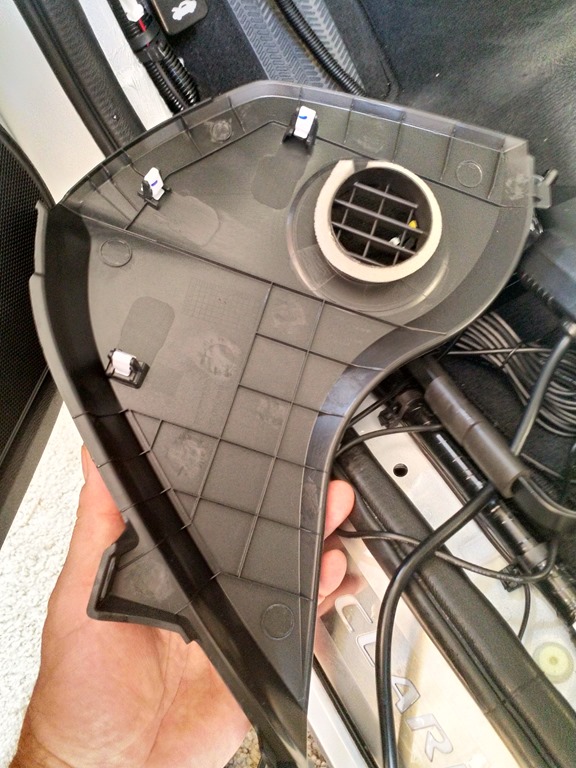
The side cover for running the wire for the display.

IMG_20190527_193915

Location of the clips on this cover.

IMG_20190527_193904

With the cover removed you can easily run the display wire to my location of choice.

IMG_20190527_193854

This is my display location, before it was stuck down with the included double-sided tape.

IMG_20190604_171954

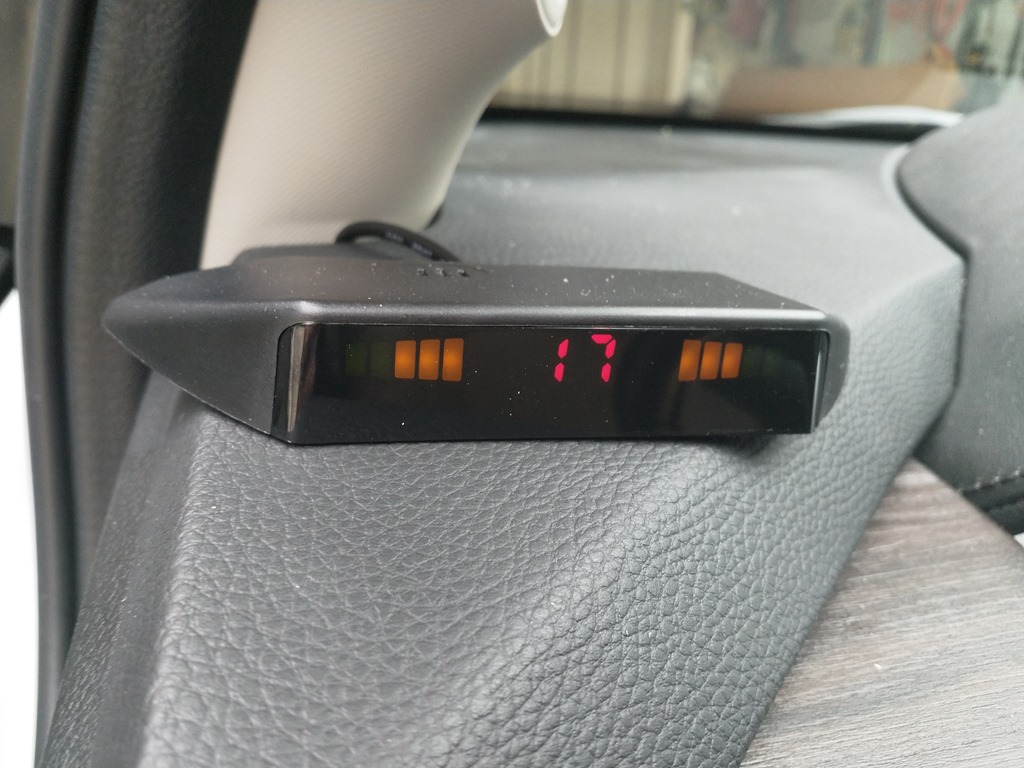
Here’s the final location.  Very unobtrusive and out of the way.

IMG_20190609_103732

To be able to turn the whole thing off, should it decide to beep randomly (and to account for taking it through car washes), I installed the included switch in the right hand blank.  The blank pulls out and I did some drilling and modification of it to allow the switch to snap in.  Again, you can’t even see this after installation.


image

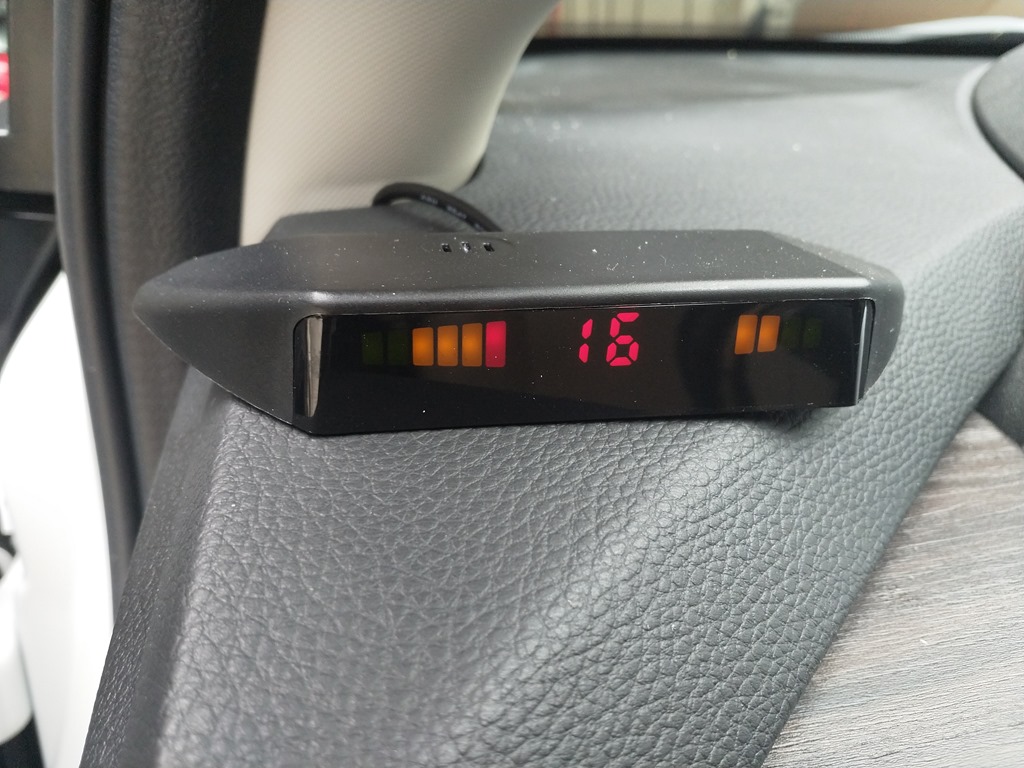
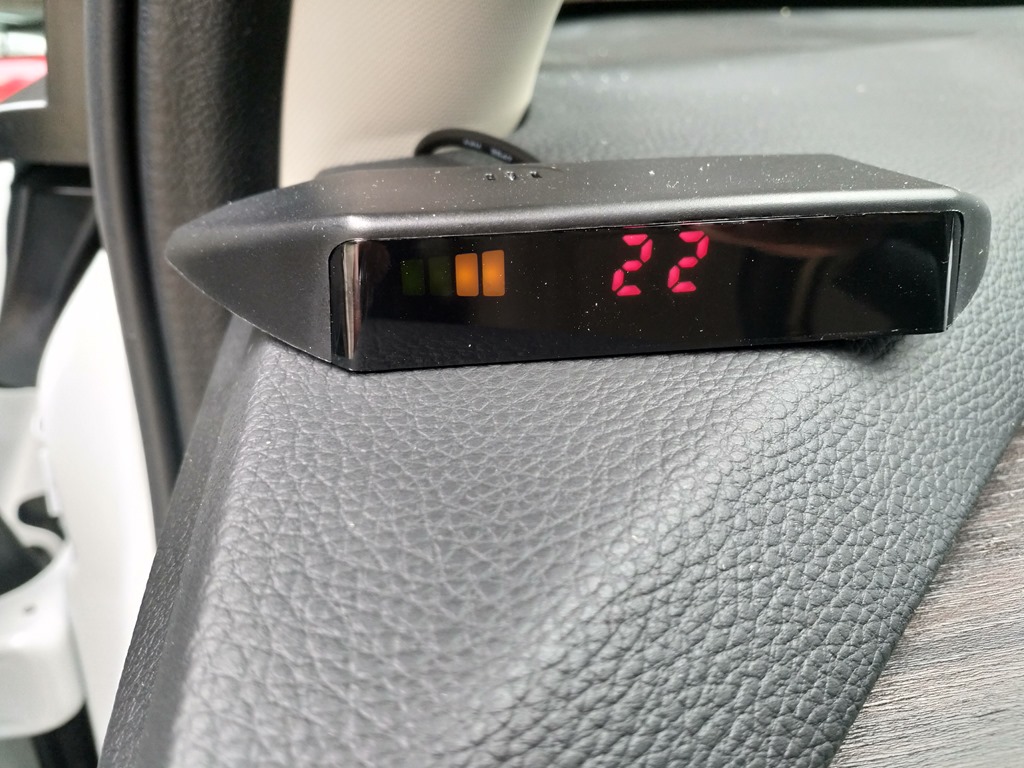
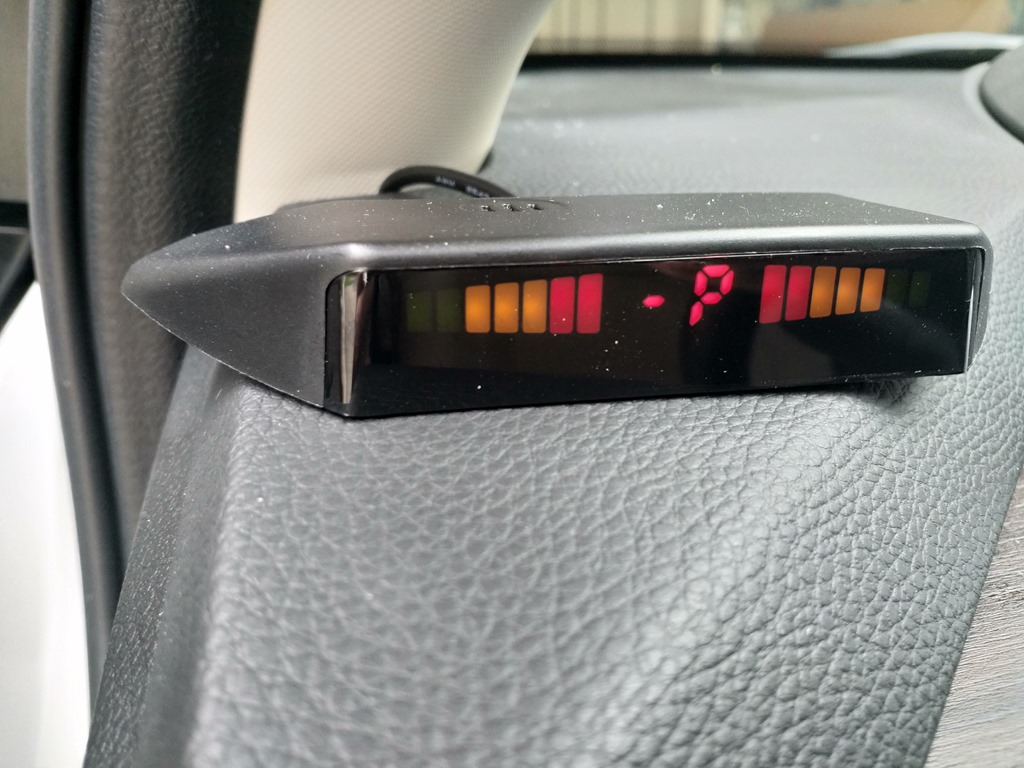
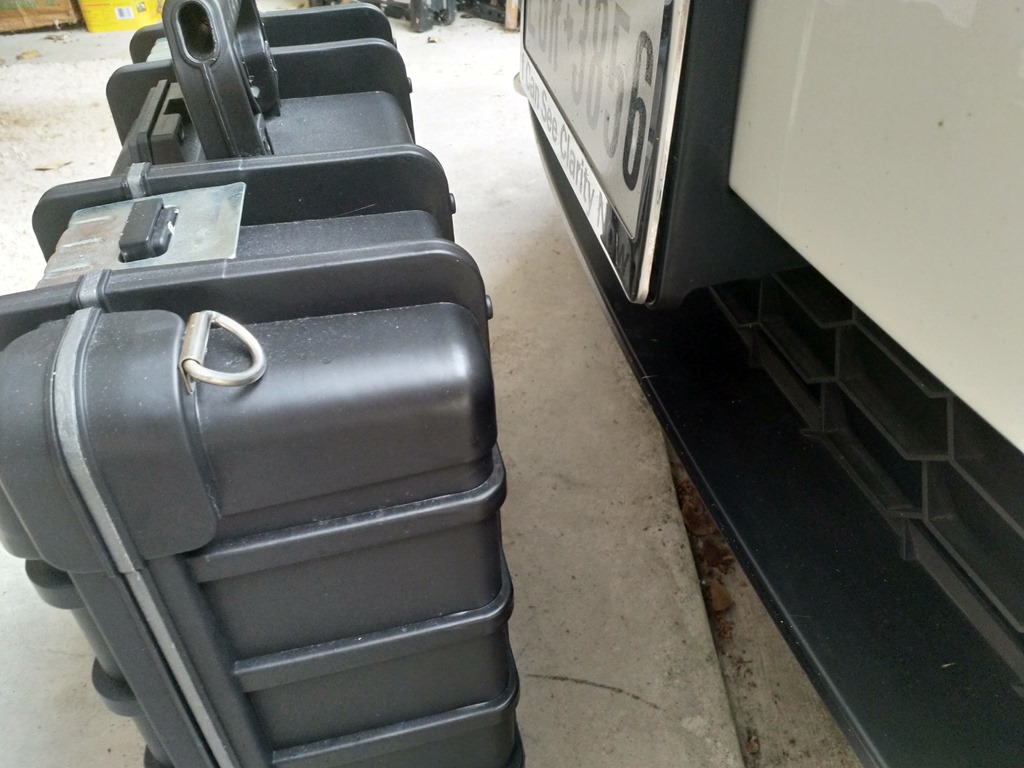
After it was all hooked up I did some testing.  I used a small Pelican case as my target.  Here are the display readouts along with the associated tape measure “read out.”

IMG_20190604_171901IMG_20190604_171921

The sensor is actually a 2-3 inches back.

IMG_20190604_171928

This is the measurement to the bumper.  Anything less than 12 inches causes the display to beep constantly…as in “don’t go any further!”

IMG_20190604_171954IMG_20190604_172017

Pretty accurate.  About 22” inches from the driver’s side.

IMG_20190604_172052IMG_20190604_172108

At about 30 inches from the passenger side.

IMG_20190604_172202IMG_20190604_172224IMG_20190604_172232

Right in front.

IMG_20190604_172306IMG_20190604_172323

Measured from the license plate…that sticks out about 3-4” from the sensor location.

IMG_20190604_172341IMG_20190604_172358

Overall, I’m very satisfied with the accuracy.

Posted in Auto Repair | Leave a Comment »